
Browse the docs
Booking products
A booking product is one bookable offer in Periode. It can represent a sauna, room, court, class, course, event-style session, treatment, rental slot, or any other time a customer can reserve.
The booking product is the template. It defines the normal customer-facing rules: name, description, schedule, duration, capacity, price, VAT, refund settings, waiver, optional extras, member prices, and access setup. The booking calendar contains the published sessions customers can actually book.
Use this guide for product setup. Use Booking calendar for day-to-day operations on live sessions.
Booking products and sessions
Product template
The product template controls the normal rules. Edit the product when a change should repeat or apply broadly, such as a new weekly schedule, default duration, price, member price, cancellation deadline, waiver, or refund rule.
Most settings live under Booking > Products > Edit. The edit screen has a search box, so you can usually type the setting name, such as VAT, Placement, Waiting list, or Waiver, to jump to it.
Published sessions
Published sessions are the real dates and times on the calendar. Customers can only book sessions that have been published and are inside the product’s booking window.
Changing the product template does not always update sessions that are already published. Schedule, capacity, and resource changes may need to be published again for the affected dates. Price changes normally apply to published dates when saved.
When to create a separate product
Create a separate booking product when the offer needs its own rules.
Use separate products for:
- Different locations, rooms, saunas, courts, or activities.
- Guided sessions that should always have a different price.
- Private and drop-in products with different behaviour.
- Products with different capacity, waiver, access, reporting, or membership rules.
- Add-on style products that need their own visibility or reporting.
Use named sessions when the slot is only a variation inside the same product and can share the same rules.
Create and edit a product
Basic details
Create booking products from the Booking area in the Backoffice. Give the product a clear customer-facing name and choose the product type that best matches the offer.
The product editor has many settings, so use the search box at the top of it instead of scrolling. Type part of a setting’s name, such as “prices”, “waiver” or “capacity”, and the editor shows only the settings that match. Clear the box to see everything again.
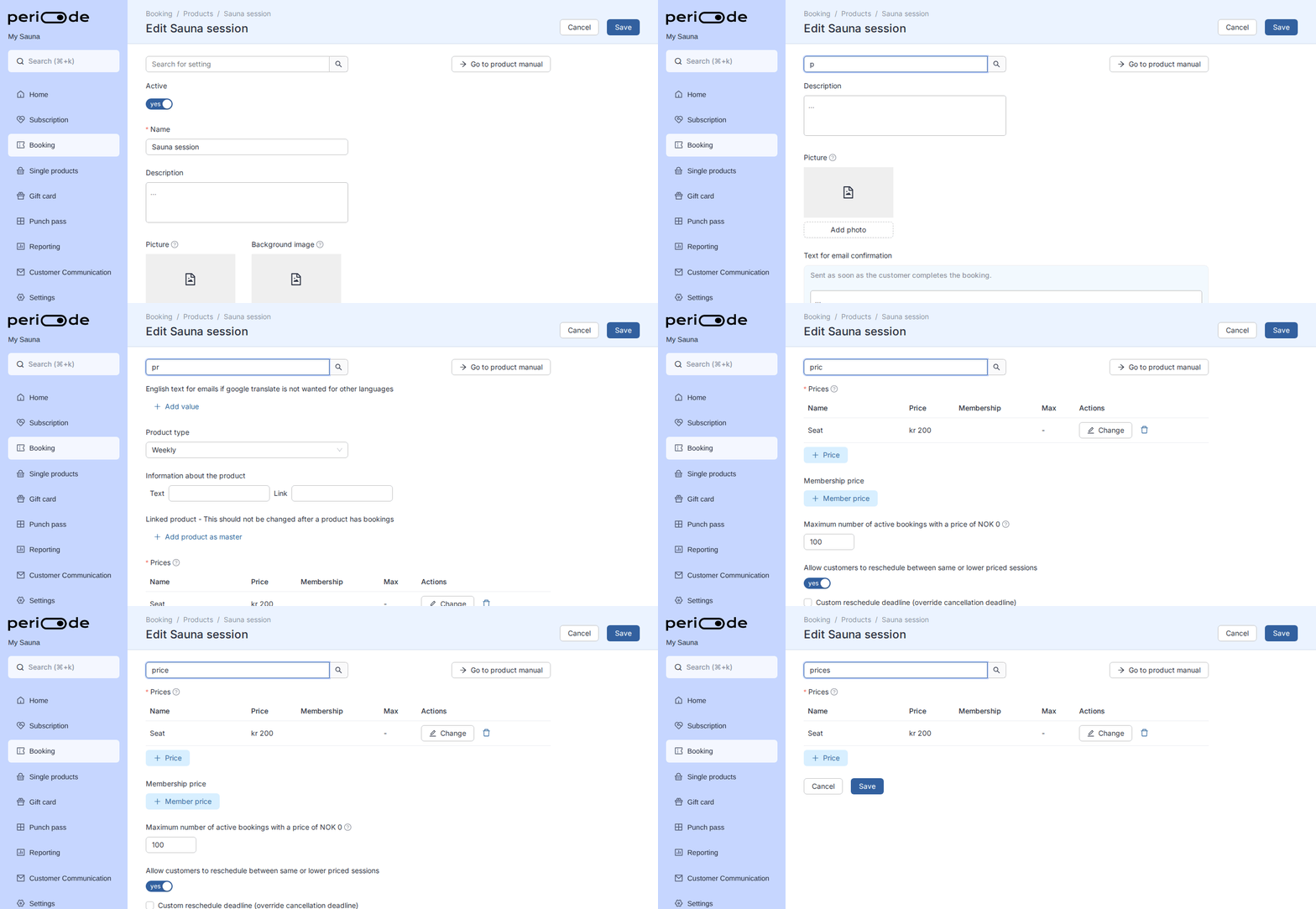
Review these fields before launch:
- Product name.
- Product type.
- Customer-facing description.
- Image or background where used.
- Price and VAT.
- Schedule and booking window.
- Capacity.
- Cancellation deadline.
- Refund type.
- Waiver and required customer information.
- Confirmation text.
- Access or door-code setup.
Product name and translations
The product name appears in customer pages, emails, confirmations, and reports. Use a name customers will recognize.
If you use invented words, brand names, or terms that should never be translated, add an override under Settings > Translations. Automatic translation can otherwise rewrite unusual words into something unintended.
Duplicating products
When you need several similar products, duplicate an existing product and adjust the differences. This is usually faster than recreating every setting.
After duplicating, review:
- Name and description.
- Price tiers.
- Capacity.
- Schedule.
- Door access.
- Waiver.
- Linked products.
- Booking group membership.
- Sharing link.
Deactivating and archiving a product
To take a product out of use, open it, turn off Active at the top, then Archive it. Deactivating stops the product being offered for new bookings, and archiving moves it out of your normal product lists while keeping its history. Existing bookings are not affected. This is the tidy way to remove old, duplicate, or test products you no longer need.
Publishing
What publishing means
Publishing turns the product schedule into actual bookable sessions on specific dates. A product can have a weekly schedule, but customers cannot book a date until the sessions for that date are published.
Automatic publishing
Many products use automatic publishing so new dates are created overnight and the calendar stays filled up to the future booking limit.
Use this when your normal schedule should continue without manual work. Still check the calendar after major schedule changes, closures, or seasonal updates.
Future booking limit
The future booking limit controls how far ahead customers can see and book sessions. Raise it to open more future dates. Lower it if you want customers booking closer to the session date.
If the product should stop after a date, use an end date rather than only lowering the future booking limit.
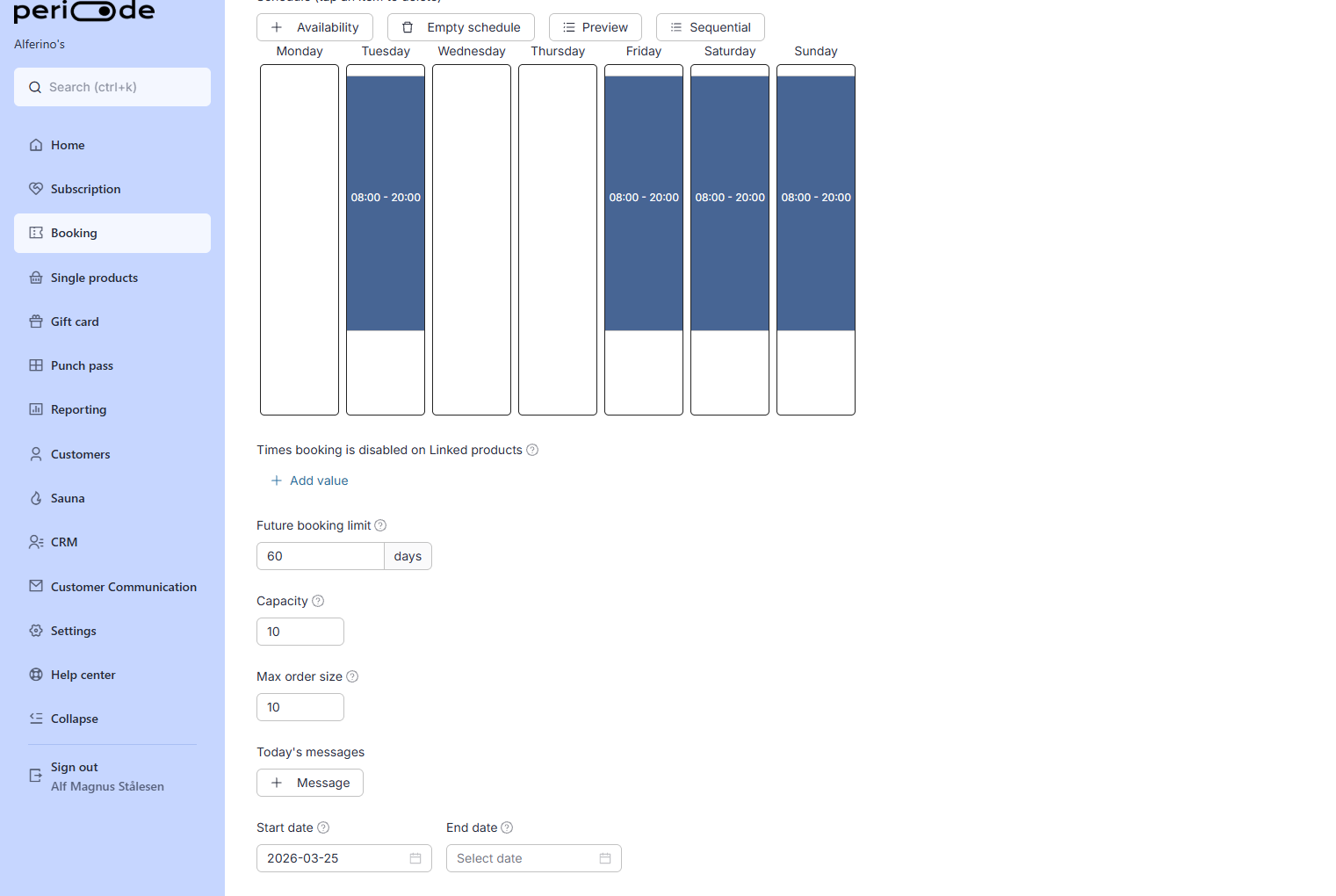
Publishing changes
When you change schedule or capacity, publish the affected dates if those sessions should update on the live calendar.
Before publishing over dates that already have bookings, inspect the preview and consider what should happen to existing customers. Publishing is not a substitute for contacting, moving, cancelling, or refunding customers already booked into affected sessions.
Closed days
Use closed days for holidays, maintenance, private events, staff days, or other dates where the normal weekly schedule should not be available.
Removing a closed day allows sessions to be published again for that date.
Prices and price tiers
Standard prices
Prices are set per booking product. Open the product under Booking > Products and search for “prices” to find the Prices setting.
A simple booking product may only need one price. More advanced products can use several price tiers, such as adult, child, student, member, private, or campaign prices. Each row in the Prices table is one tier the customer can pick at checkout.
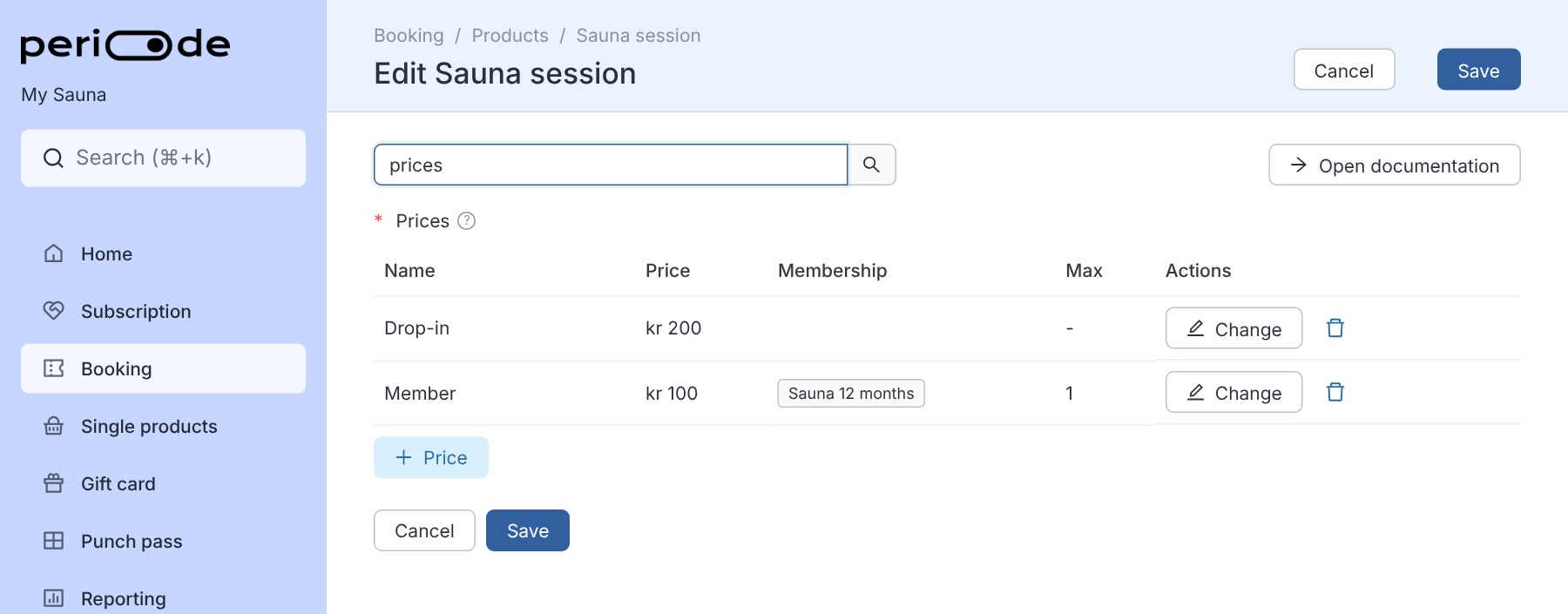
Each tier has:
- Name: the label the customer sees, such as “Drop-in” or “Member”.
- Price: what the customer pays for one seat in this tier.
- Max: how many seats can be bought with this tier in one booking. Empty means up to the product’s capacity.
- Only for members: the membership a customer must have to pick this tier. See Member prices.
The Price is always the price of one booked seat. It is never a monthly or yearly amount.
How many seats are preselected
When a customer opens the booking page, Periode preselects one seat so the simplest booking is one click away. On a product with several price tiers, the seat lands on the first tier that has no membership requirement, or on the member tier when the customer is logged in and has that membership.
Two settings under Advanced on each price tier control this. Open the booking product under Booking, go to Prices, expand the price tier and open Advanced:
- Minimum amount: the lowest number of seats the customer can set on that tier. Leave it blank or
0to let the customer remove the tier entirely. - Initial amount: the number the tier starts on when the page loads. It overrides the automatic preselection, so a tier with an initial amount is never the one that receives the preselected seat.
To make every tier start on 0, so the customer actively picks both ticket type and quantity, set Initial amount to 0 on every price tier on the product, and make sure Minimum amount is blank or 0 on each of them. One tier left without an initial amount still gets the automatic seat.
Initial amount is also the way to stop a member tier from being preselected: set it to 0 so a logged-in member starts on nothing and picks for themselves.
Link parameters can still override this. See Link parameters.
Member prices
A member price is a price tier with Only for members set to the membership. The Price on that tier is what a member pays for one seat when they book. It is not the price of the membership itself. The membership’s own price is set on the subscription product and is charged separately every period.
Example: a sauna session costs kr 200, and members of the kr 800 a month “Sauna 12 months” membership should pay kr 100 per session. Add a “Member” tier with Price 100 and Only for members set to Sauna 12 months. Do not enter 800. If members should book for free, set the Price to 0.
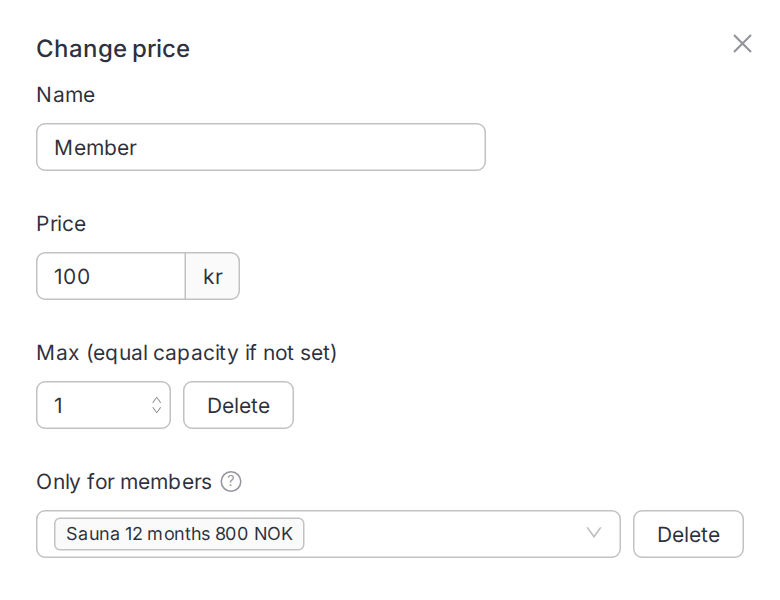
If only the member should receive that price, set Max to 1 so the member cannot also book guests at the member price. Guests then use the normal tier, unless you intentionally allow more member-priced seats.
Restrictions on bookings
You can limit how often a booking product can be booked. Add a restriction under Restrictions on the number of bookings for members or customers, choose what it applies to, and set three limits:
- Per session: how many seats can be booked in the same session.
- Per day: how many bookings can be made on the same day.
- Per month: how many bookings can be made in the same month.
A restriction applies either to a membership or to the customer:
- A membership: the limits count the bookings the member has made with that membership. When the member reaches a limit, the membership no longer applies to that booking and the customer is offered the regular price instead. The membership applies again as soon as the limit no longer applies, for example the next day or the next month.
- Customer: the limits count the customer’s own bookings, whether or not they have a membership. When the customer reaches a limit, the booking is stopped and the customer is told which limit was reached, for example that they have reached the limit of two bookings per day. Bookings you make yourself from the calendar are never stopped.
A customer restriction only works when the booking belongs to an account, so a product with one always asks the customer to sign in, even if “Everyone must sign in before booking” is off. Customers cannot continue as guests on that product.
Typical uses:
- Let members book any day, but not several times on the same day.
- Stop one member from booking out a whole week for themselves.
- Let every customer hold at most one seat per day on a popular product, members or not.
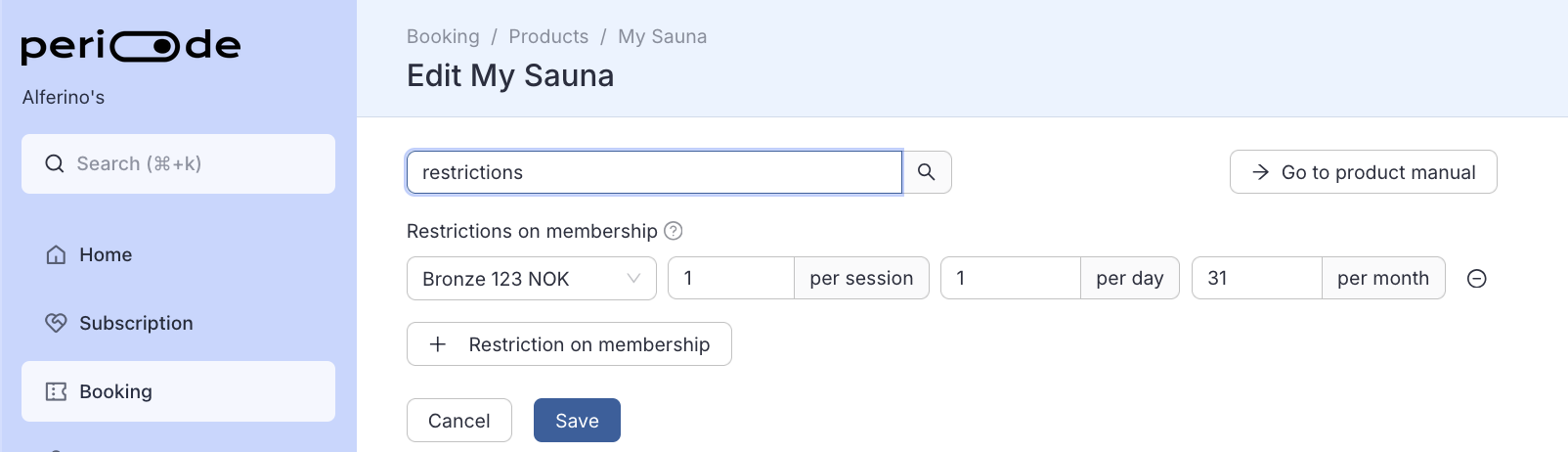
Which bookings the limits count is set under Products included in restriction, the same way for both kinds of restriction. Untouched, the limits count bookings on all your products. Add the setting and list products, and they count this product plus the ones you listed; add it and list nothing, and they count this product alone. The restriction says which of these it is doing right now, in the line under the limits. A customer with several memberships of the same type gets the limits multiplied accordingly.
Included sessions through punch passes
If a membership should include a fixed number of sessions per period, connect a punch pass to the membership instead of using an unlimited free member price. See Granting punch passes through memberships.
Prices for other lengths
When a product has several lengths, the Price on each tier is the price for the product’s Duration. Longer lengths are priced in one of two ways: a percentage increase, or a custom price per length. The Multiple lengths setting can also cap the total price.
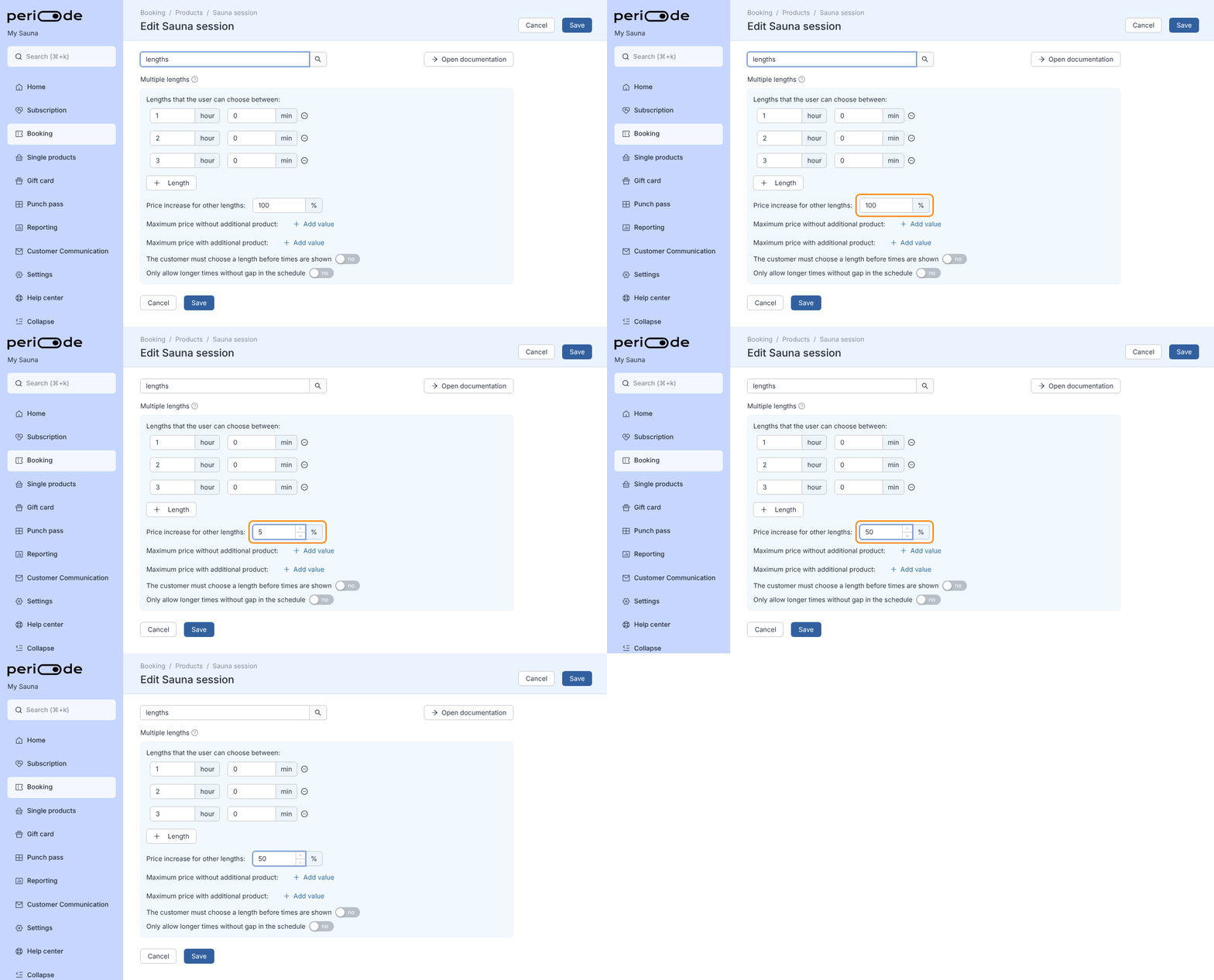
Price increase for other lengths scales the tier’s Price with the length. You find it in the Multiple lengths setting. Each extra length adds this percentage of the tier’s Price. With a Duration of 1 hour and a tier at kr 200:
| Price increase | 2 hours | 3 hours |
|---|---|---|
| 100% | kr 400 | kr 600 |
| 50% | kr 300 | kr 400 |
| 0% | kr 200 | kr 200 |
The increase is calculated from the tier’s own Price, so a member tier at kr 100 grows by kr 100 per extra hour at 100%. To base the increase on another amount, expand Advanced on the tier and fill in Price based on other lengths. With kr 200 in that field, a kr 100 member tier at a 100% increase costs kr 300 for 2 hours: the member price for the first hour and the standard price for the extra hour.
Custom prices per length sets an exact price for one length instead. Open the tier under Prices, click Price per length under Custom prices per length, choose the length and enter the price. The price is the full price of one seat for that length, not an amount added on top. When the customer books exactly that length, it replaces the tier’s Price, the increase and any time-based price. Lengths without a custom price still follow the increase. Use it for a discounted long booking: 1 hour at kr 200, 2 hours at kr 350 and 3 hours at kr 450.
Maximum price without additional product and Maximum price with additional product cap what one booking can cost. The first cap applies to the seats, the second to the seats together with any optional extras. A booking that would cost more than the cap is charged the cap instead. The caps apply to the booking total, not to each seat, so they also cap a booking of many seats at the normal length. Leave them empty for no cap.
A Price percentage set on a window in the weekly schedule is applied on top of the tier price, the increase and the custom prices per length, before the caps.
Different price at given time
Each price tier can have its own price at given times of the week, so a seat costs more in the evening or at the weekend and less on a weekday morning. The time the booking starts decides the price. The weekly schedule and the capacity are untouched.
Open the product under Booking > Products, search for “prices” and open the tier. Under Different price at given time, click Add value to show a weekly grid. Add a time block by dragging in a weekday column, or by clicking Rule above the grid. The dialog asks for the start, the length or end time, the price for a seat that starts inside the block, and the days it applies to. Add all puts the same block on every weekday. A block cannot cross midnight, and two blocks on the same day cannot overlap. Click a block to change or delete it. Remove price schedule under the grid removes the whole schedule.
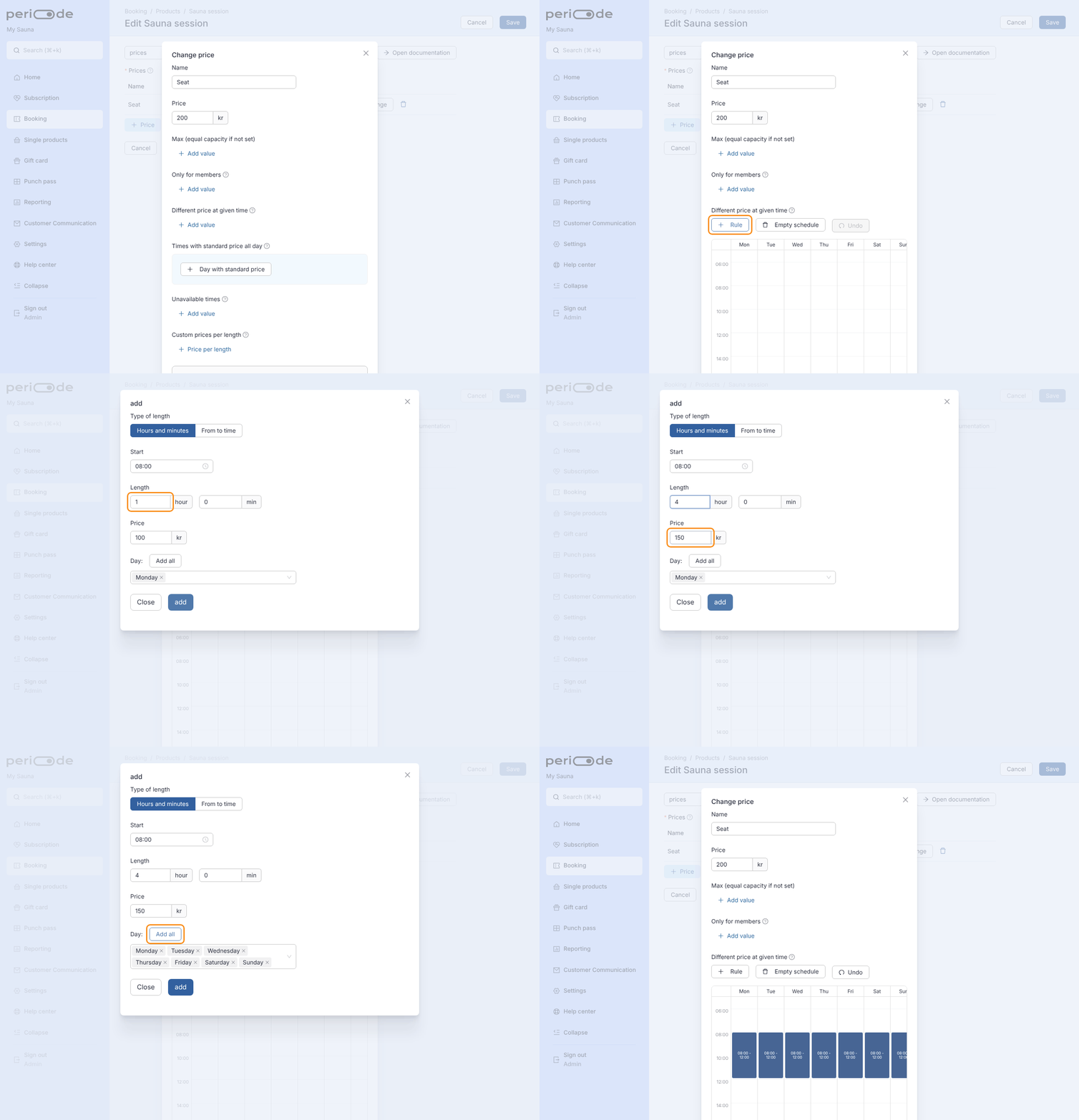
A session that starts inside a block costs the block’s price. A session that starts outside every block, and every session on a day with no blocks, costs the tier’s Price. The block is inclusive on both ends, so a session that starts exactly when the block ends still gets its price. Blocks belong to one tier. A product with a Drop-in and a Member tier needs a block on each tier for both prices to change in the evening. A tier without blocks keeps its Price all week.
Under Times with standard price all day, click Day with standard price to add a date on which the tier ignores its time blocks, for example a holiday that should have the normal price. On a listed date the tier’s Price applies all day.
With several lengths, the block’s price replaces the tier’s Price for the first length only. The extra length is still priced from the tier’s Price, or its Price based on other lengths. Take a kr 200 tier with a 100% increase and an evening block at kr 300: a 2-hour booking that starts in the block costs kr 500, the evening price for the first hour and the standard price for the second. A custom price per length overrides the block entirely.
By default the customer first sees the price on the payment step. Turn on the price in the slot list so every time shows what it costs before the customer picks one.
The Price percentage on a window in the weekly schedule is the other way to change prices by time. It changes every tier by the same percentage for all sessions in that window. Use the per-tier blocks when the tiers should change by different amounts or to exact prices. Use the window percentage when a whole window is simply half or double price for everyone.
Campaign prices
For temporary pricing, adjust the relevant price tier or session price according to your campaign. If you want customers to see that a price is discounted, explain the offer in the product description.
Showing the price in the slot list
By default the booking page shows the price on the payment step, not in the list of times. If you want customers to see the price directly in the slot list under the calendar, turn on the price placement setting on the product (in the product settings, search for “placement”). With it on, each listed time shows its price, which is useful when different times or tiers are priced differently. Member-only and other restricted tiers still appear only to a signed-in customer who is entitled to them, so a discounted rate that is tied to a membership shows once that customer is logged in, not to everyone.
VAT
VAT is set per product. If the total a customer sees is higher than expected, check the VAT setting first.
Refund type
The booking product controls customer-side cancellation behaviour. The Refund type decides what a customer receives when they cancel within the allowed cancellation window.
Refund types can include money refund, gift-card credit, split refund, or no automatic refund, depending on product setup.
Admins can still decide what happens when cancelling or refunding manually from the Backoffice.
Time setup
Duration and interval
Duration is how long the session lasts. Interval is how often a new bookable start time appears.
For example, if a session lasts 90 minutes and you need 30 minutes before the next customer, use a 90-minute duration and a 120-minute interval.
Both can be overridden for a single window in the weekly schedule. Open the window, expand Advanced, and set Other length for a different session length or Time between starts for a different interval, and that window alone uses them. Leave them empty and the window follows the product. Use this when, say, evenings run on a longer interval than the rest of the day.
Cancellation deadline
The cancellation deadline controls how long before a session a customer can cancel or reschedule according to the product rules.
Set this clearly and make sure the product text matches your policy.
Multiple session lengths
A product can offer several lengths, such as 1, 2 and 3 hours, so the customer chooses a short or long version of the same product. Open the product under Booking > Products, search for “lengths” and find the Multiple lengths setting.
- Lengths that the user can choose between: the list of lengths the customer can pick. Click Length to add one and set it in hours and minutes, in steps of 15 minutes. The customer chooses from this list instead of the product’s Duration, so include the normal length too. The first length in the list is preselected.
- The customer must choose a length before times are shown: with this on, the booking page asks for the length first and only then lists the times. Leave it off and the customer sees the times for the first length right away and can switch in the Choose length dropdown above the times.
- Only allow longer times without gap in the schedule: a longer booking spans several of the sessions the schedule creates. With this on, a longer length is only offered when those sessions follow each other without a gap, so a 3-hour booking cannot bridge a break in the schedule.
A longer booking takes a seat in every session it covers. It is only offered when each of those sessions has a seat left and the booking ends before the day’s closing time. What the longer lengths cost is set in the same setting. See Prices for other lengths.
One-off length changes
If one specific slot should be a different length, edit that individual slot in the calendar, see Edit one slot.
Schedule setup
Weekly pattern
The weekly schedule is the normal pattern Periode uses to create sessions.
Set the normal opening windows for each weekday, then publish sessions from that schedule. Avoid overlapping schedule blocks unless the product is intentionally designed for overlapping availability.
Adding a window
Drag in an empty part of a weekday column to add a window: press where it should start, drag to where it should end, and release. The range snaps to the nearest 15 minutes, and the add dialog opens with that weekday and time already filled in, so you can set capacity, price adjustment or a message before saving. Moving the pointer out of the column before you release cancels it and nothing is added.
Clicking a window that already exists opens the same dialog to change or delete it. The same drag works in the other weekly grids: discount code times, member prices, unavailable times and punch pass schedules. Dragging needs a mouse — on a touch screen, use the button above the grid to add a window.
Moving a window
Drag a window itself to move it: press on it and drag, up or down to change the time, sideways to move it to another weekday. It snaps to the nearest 15 minutes, a dashed outline shows where it will land, and releasing moves it there with its capacity, price and message intact. Press Escape, or release on a spot that would overlap another window or run past midnight, and the window stays where it was. A click without dragging still opens the window for editing.
Undo above the grid reverts the last change you made to it — a move, an added or deleted window, a saved edit, or emptying the schedule — one step at a time. It covers changes made since you opened the page and does not undo anything already saved on the product.
A window cannot cross midnight. In the from-to view the end time stays where you put it when you change the start, so moving the start later shortens the window rather than pushing it into the next day. If a change cannot be saved — it would overlap another window, or the length is zero — the reason appears at the bottom of the dialog, which stays open with the original window untouched.
Removing an optional grid
The optional weekly grids are removed with the button under the grid, which names what it removes — “Remove price schedule”, “Remove unavailable times”, “Remove availability”, “Remove timetable” or “Remove the restrictions”. That clears the whole weekly pattern for that setting and the product falls back to its normal rule until you add it back.
Start times that cannot be booked
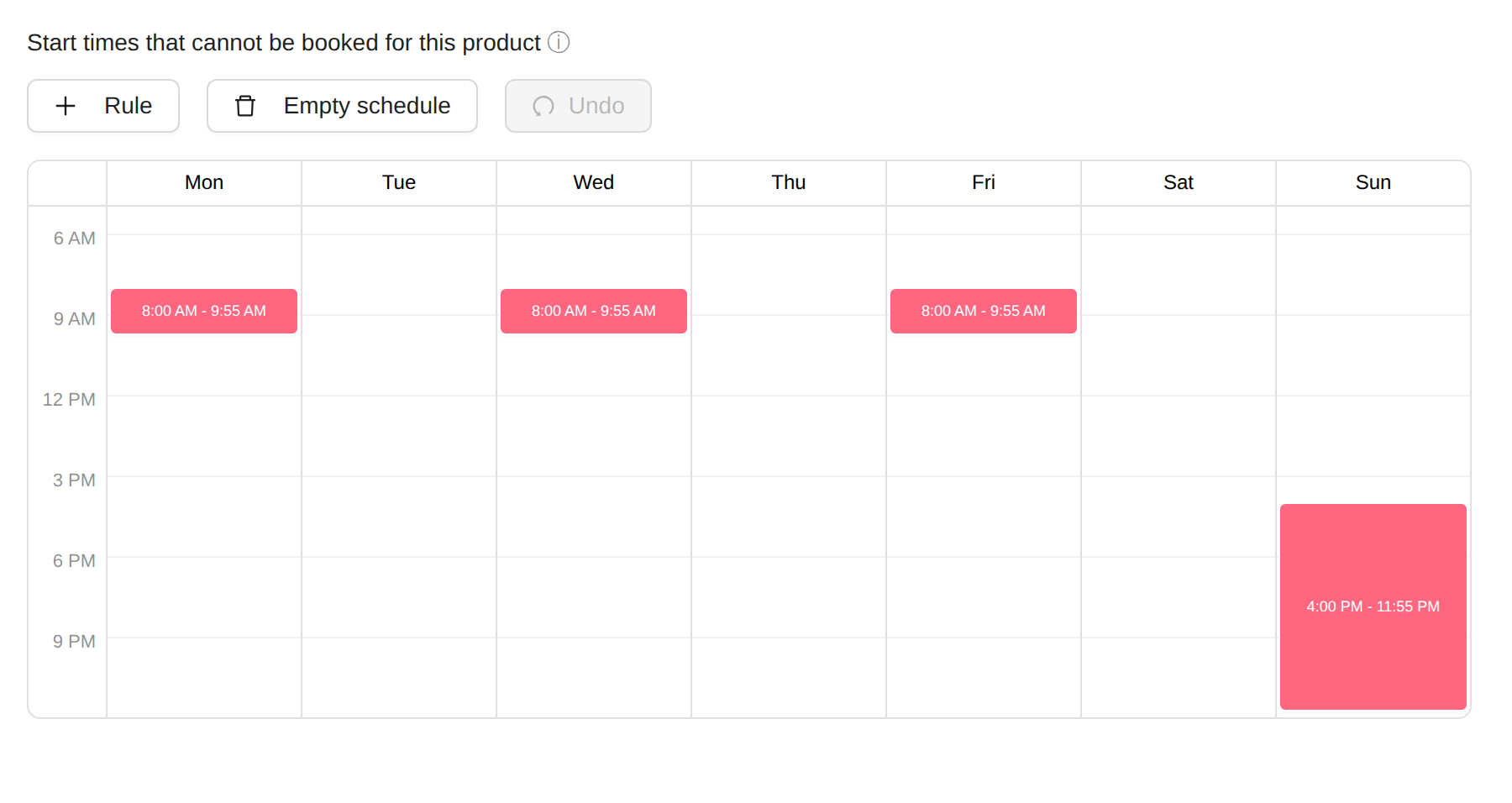
The “Start times that cannot be booked for this product” setting blocks time ranges per weekday. Any session whose start time falls inside a blocked range cannot be booked on the product you are editing. Sessions that start outside the blocked ranges are unaffected, and the underlying schedule is not changed.
The blocked range is inclusive on both ends. A start time that lands exactly on the start or the end of a range is also treated as unavailable, so keep that in mind when you set the range edges.
This is most useful for linked products. A linked product takes its schedule from the main product, so blocking start times is the way to limit the hours when the linked product itself can be booked, without editing the main product’s schedule. See Linked products and shared capacity.
One-off exceptions
Use one-off calendar edits for exceptions, such as one special session, one closed slot, one temporary capacity change, or one named session. See Edit one slot.
Session messages
Add a message to a session to show extra information on the session itself. The customer sees it on the session when booking, so use it for a practical note tied to that session, such as a theme, a host, what to bring, or a change of conditions. The message supports basic formatting and can run to more than one line.
There are two places to set it, depending on whether the note should repeat or apply once:
- From the schedule. Each slot in the weekly pattern has a Message field. A message set here shows on every session that slot generates, so use it for information that is always true for that recurring session.
- From the calendar. Open the session in the product calendar and edit the slot to set or override its Message. This affects only that one published session, so use it for a one-off note. See Edit one slot.
Keep the message short and tied to what the customer needs to know before booking or arriving.
When a customer reschedules a booking themselves, the first line of each session’s message shows next to the time in the list of times. When they pick a session, the rest of its message shows below the list. A session with no places and only a message is listed with its message, but the customer cannot move a booking to it.
Today’s messages
A today’s message applies to a whole date rather than a single session. The customer sees it above the session times when they select that date, so use it for a date-wide note such as a closure, special opening, holiday hours, or an announcement.
Set today’s messages on the booking product. Each entry has a date, the message text, and an optional link. When a link is set, the whole message becomes clickable — for example to point the customer at another product or page.
A date can carry a today’s message even when it has no bookable sessions, so this is also how you surface a note on an otherwise empty day.
Capacity and availability
Total capacity
Capacity is the number of available seats for each session.
A product with capacity 1 works like a private booking. A product with higher capacity works like a class, shared sauna, group session, or activity with several available seats.
Seats per booking
Seats per booking controls how many seats one customer can buy in a single booking. This is separate from total session capacity.
Use it to allow group bookings while still controlling how much of a session one customer can take.
Overlapping sessions and capacity
Capacity is counted per session. If sessions overlap in time, meaning a new start time appears while an earlier session of the same product is still running (a start interval shorter than the duration), Periode does not pool the overlapping sessions into one shared live seat count. Overlap is only safe in two cases:
- The sessions are set to be independent of each other, so each overlapping session keeps its own separate capacity, or
- The product has a capacity of
1, where any overlap simply blocks the slot (a private booking).
For a shared space with more than one seat, such as a communal sauna, do not model it as long sessions on a short interval. The seats will not add up across the overlap and you can oversell. Instead make the sessions short and non overlapping by setting the interval equal to the duration, and turn on Multiple session lengths so a customer can book several back to back slots in one booking when they want a longer visit. Every seat is then counted correctly.
Closing availability
To block a session from further booking, close the session or set capacity to 0. Existing bookings are not automatically cancelled just because capacity is reduced, so handle those customers separately.
Depending on product display settings, full or zero-capacity sessions may still appear as unavailable. If you want unavailable sessions hidden, check the product display settings for unavailable times.
Waiting list
Enable a waiting list when customers should be able to register interest after a session is full.
When a seat frees up, customers on the waiting list are notified. Treat it as a notification list rather than a guaranteed priority queue unless your product setup uses another workflow.
Named sessions and session types
Named sessions
Named sessions let you label individual slots inside the same product, for example Silent hour, Guided session, Family session, or Women only.
You can add named sessions in two ways:
- Add the name to the weekly schedule pattern when the session repeats.
- Edit a single published slot when the named session is a one-off exception.
Session-type filter
If enabled, the session-type filter lets customers narrow the calendar to a specific named session type.
Use this when one product contains several recurring session types and customers need a quick way to find the right one.
When named sessions are not enough
If the session needs separate membership rules, a separate price model, different capacity, different reporting, or must always be full price, create a separate booking product instead.
Booking groups
What booking groups do
A booking group shows several booking products together. It does two jobs: it gives customers one page to choose between the products, and it gives you an admin calendar with the products side by side.
Each product keeps its own rules: schedule, price, capacity, waiver, access setup, and reporting. The booking group only decides which products are shown, in which columns and order, and how the customer page looks. A product can be in several groups, so the same sauna can appear in an “All saunas” group and in a group for one location.
When to use booking groups
Use booking groups for:
- Several saunas or rooms in one venue.
- Multiple courts or facilities.
- Private and shared options shown together.
- Several locations in the same area.
- Regular and guided sessions shown in one journey.
- A programme of events from several products in one calendar or list.
- An admin calendar that shows all your products for the day on one screen.
Creating a booking group
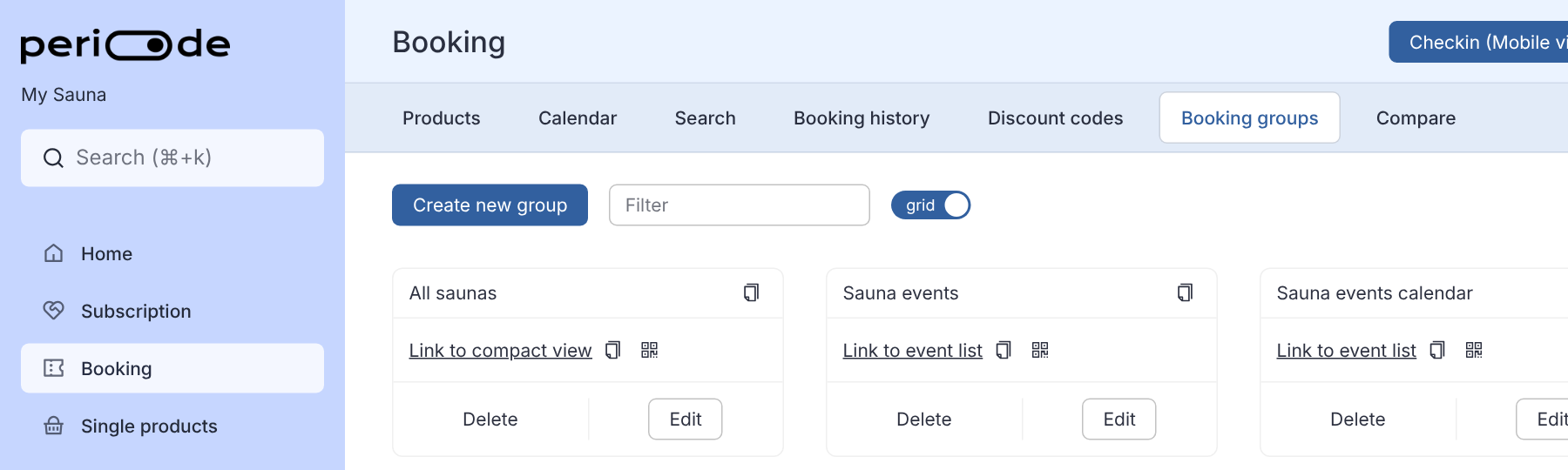
Go to Booking > Booking groups. Each group is a card with its customer link and its Delete and Edit buttons. Click Create new group to make a new one.
Give the group a name and pick the setup that matches how customers should see it. Each setup is a starting point that sets the group’s type and a few display settings:
| Setup | Type | Settings it turns on | What customers see |
|---|---|---|---|
| Weekly schedule | Recurring | None | A month calendar to pick a day, then the free times that day for every product. |
| Event calendar | Events | Show calendar, Hide description, Hide images | A month calendar where only days with events can be picked, then that day’s events. |
| Event list | Events | None | Every upcoming event from every product in the group, in one list by date. |
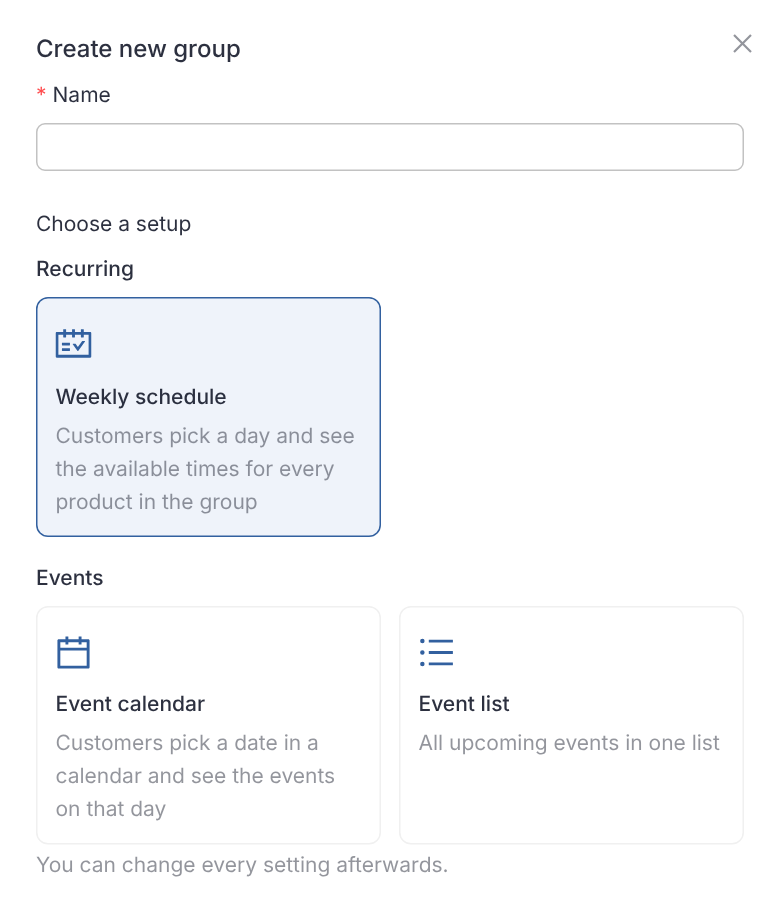
Click Create group. The group is saved and its full settings open straight away, so you can add your booking products and fine-tune the display. Every setting can be changed later with Edit on the group, including the type, so picking the wrong setup is easy to undo. See How customers see a group for what each setup looks like and Display settings for everything you can change.
Columns and products
The group’s settings open in the Edit group dialog:
- Name and Description are shown at the top of the customer page.
- Type is Recurring for sessions that repeat every week and Events for one-off events. It decides which customer page the group’s link opens. The list also has Overnight, which is for products booked over several nights and is not one of the setups.
- Columns hold the products. Click Add column for each column you need, and Add product inside a column to put a booking product in it. A column can hold one product or several. With one empty column, Add all booking products fills it with every active booking product.
- Title on a column names it. Titles are used by the column filter on the customer page.
- Admin color on a product sets the colour of its sessions in the admin calendar for this group.
- Widen for overlaps gives a column room for sessions that overlap each other, see below.
- The arrows on a column and on a product move it up or down; the bin removes it.
- Admin calendar start time is the first hour the Day and Week views show for the group.
The order of columns and products is the order everywhere: from left to right in the admin calendar, and from top to bottom on the customer page.
Products side by side in the admin calendar
Open Booking > Calendar and pick the booking group in the Product picker at the top, instead of a single product. In the Day and Week views, every column in the group becomes its own lane, so you see all of the group’s products for the day next to each other.
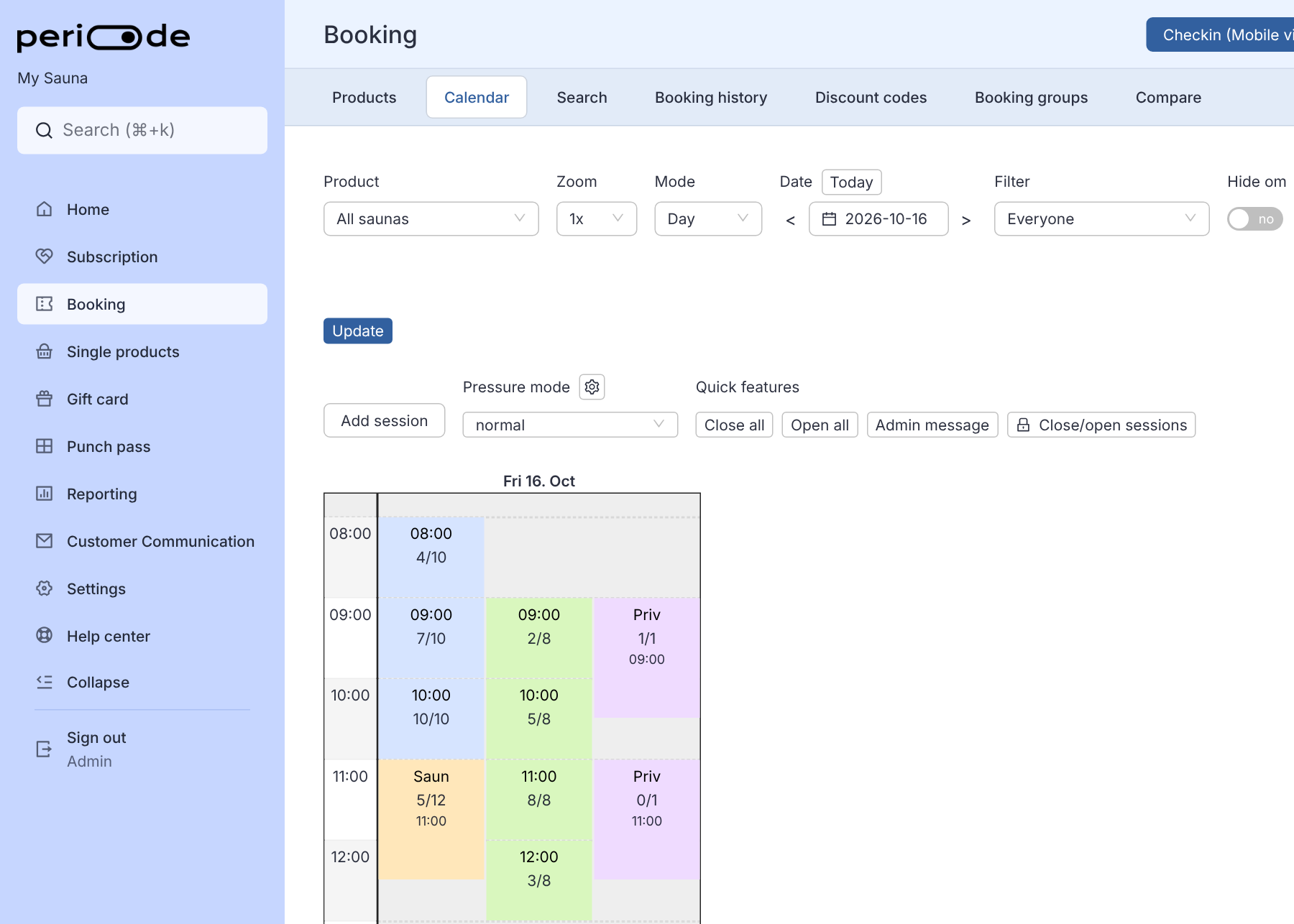
Each session shows how many seats are booked out of its capacity, for example 7/10. Sessions shorter than an hour and a quarter show their start time on top. Longer sessions, in a group with more than one column, show the first four letters of the product’s Abbreviation, or of its name when it has none, with the start time underneath, as Saun and Priv do above. Click a session to open it, as in the single-product calendar.
The columns decide how the lanes are laid out, so set them up from when the products run:
- Products whose times overlap get a column each. If two products can have sessions at the same time, such as the Seaside sauna and the Private sauna above, give each its own column. Their sessions then sit next to each other instead of on top of each other.
- Products whose times never overlap can share a column. Products that take turns in the same space, such as the Sauna session in the morning and the Sauna ritual at midday in the same sauna, can go in one column. The lane then reads as the full timetable for that space, and the calendar stays narrow.
- Widen for overlaps is for a column where sessions can still overlap, for example a product whose next session starts before the previous one ends. Set how many slots the column needs, and overlapping sessions are shown next to each other inside it.
Session colours come from the group first: the Admin color on the product in this group. Without it, the product’s own Group color is used, and without that, light grey. The product settings Color for empty calendar and Color for bookings in the calendar override that colour for closed sessions and for sessions with bookings.
A group can be made for the admin calendar alone. Its customer link only matters if you share it.
How customers see a group
The customer page depends on the group’s type and its display settings. The three setups give three different pages. The pictures below show the three groups from the Booking groups picture above.
Weekly schedule
A Recurring group shows the group name, then a month calendar. Customers pick a day; days before today, or before the group’s Start date, cannot be picked. Under the calendar every product in the group follows as a card, column by column and in the order of the columns:
- The product name, its image and its description. The description is the product’s Description to group when it has one, otherwise its normal description.
- The free start times that day, as buttons. Clicking a time goes straight to booking that session.
- Full sessions, and sessions too close to their start to be booked, are left out. When nothing is left the card says No available times on this day, or the product’s own fully booked text. On a closed day the card says so, and a day beyond the product’s future booking limit shows Too far ahead for this product.
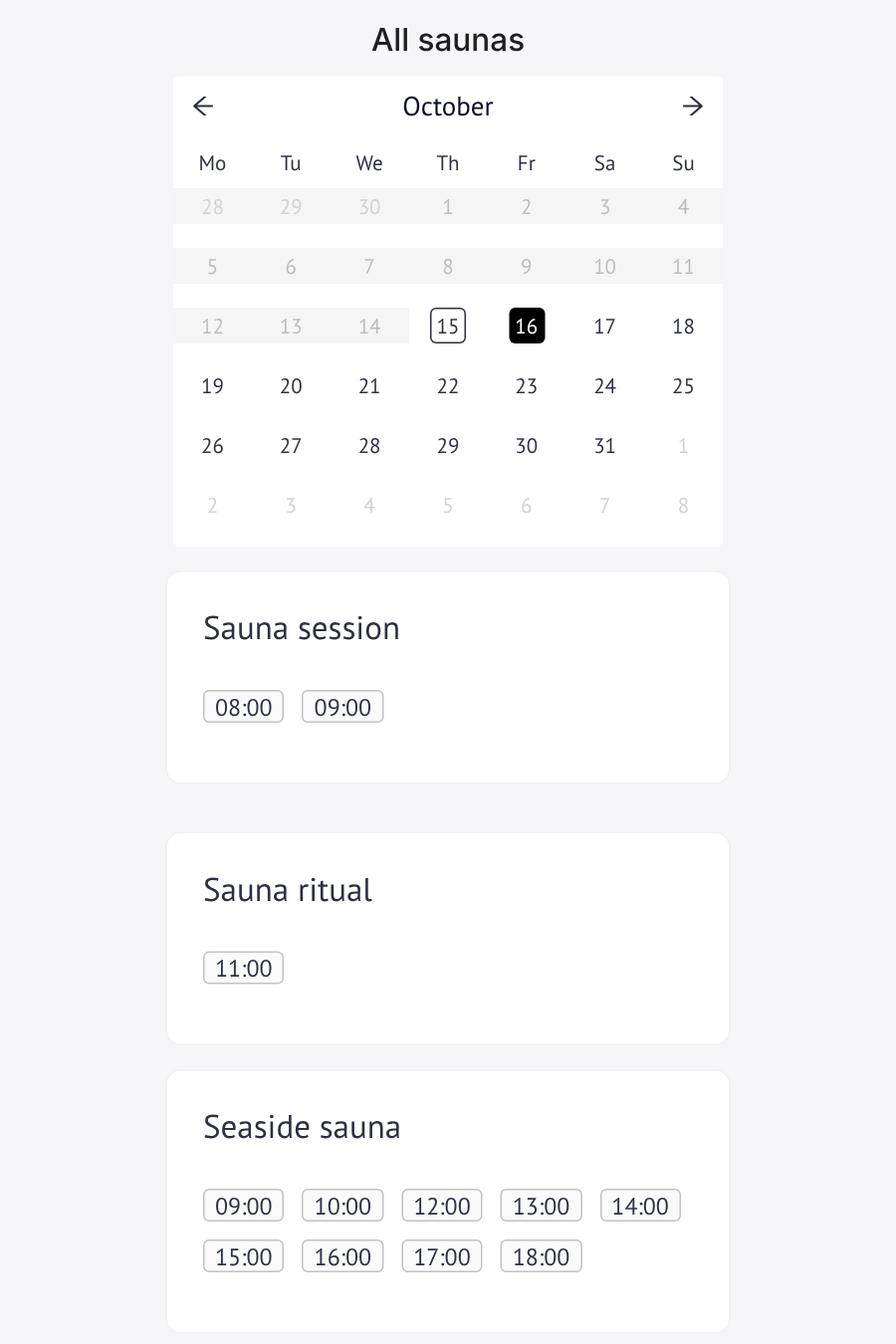
Clicking the product name or image opens that product’s own booking page on the picked day.
Event calendar
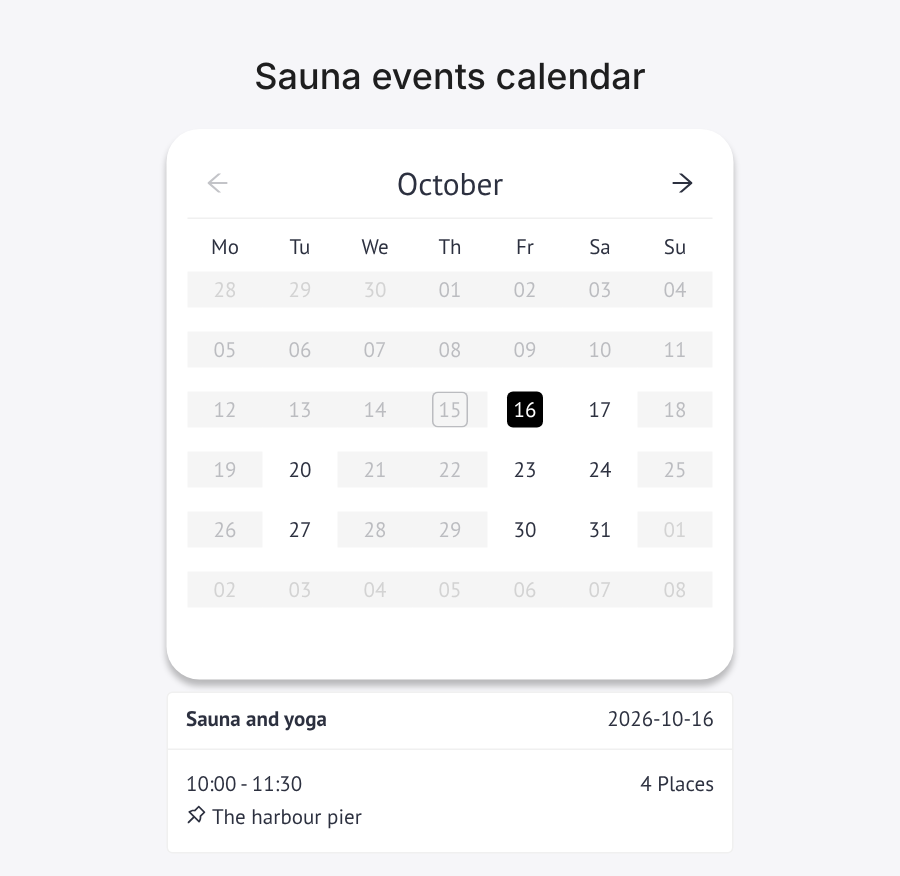
An Events group with Show calendar turned on shows a month calendar where only days with at least one event can be picked. The first day with events is picked when the page opens. Below the calendar, the events on the picked day are listed as cards with the product name, the date, the time, the seats left and the location. The Event calendar setup also turns on Hide description and Hide images, so the cards stay short.
Event list
An Events group without Show calendar lists every upcoming event from all the products in the group, sorted by date and time. Each card has the product name, the date, the time, the seats left, the description, the location and, unless Hide images is on, the product image. Clicking a card opens the booking for that event.
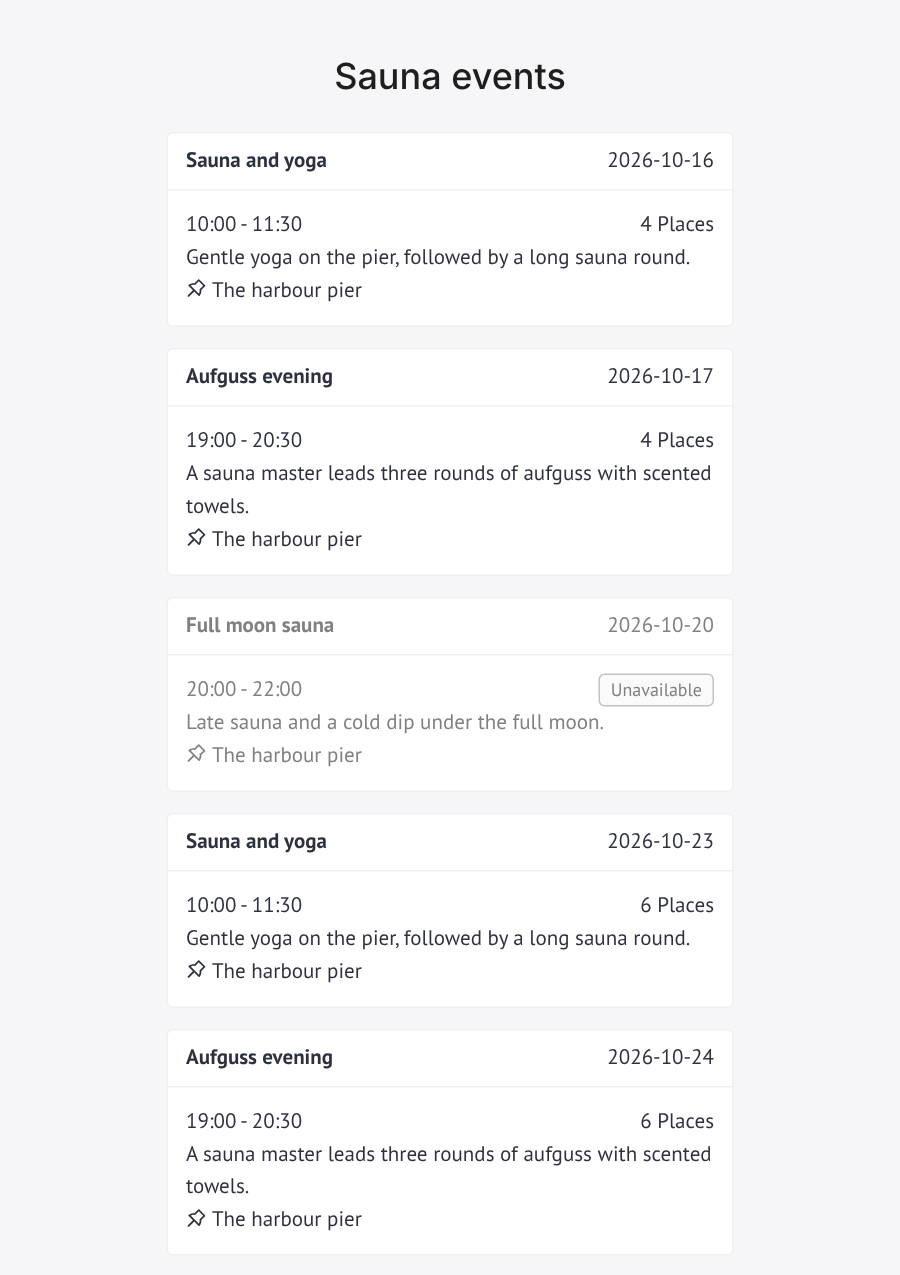
A full event is greyed out. It is labelled Waitlist when the product has a waiting list. Otherwise the label is the group’s Fully booked text when you have set one, then its Unavailable text, and Unavailable when neither is set. A session you have closed skips the fully booked text.
Display settings
Open Edit on the group and expand Display settings. Each switch changes the customer page; some only apply to one type.
| Setting | Applies to | What it does |
|---|---|---|
| Show prices | Both | Shows the product’s prices on each product card or event card. |
| Hide description | Both | Leaves out the product descriptions. |
| Hide images | Both | Leaves out the product images. |
| Hide map | Events | Leaves out the location line on event cards. |
| Show calendar | Events | Shows a month calendar and lists only the events on the picked day. This is what makes an Event calendar. |
| Hide times and date picker | Recurring | Leaves out the calendar and the time buttons. Customers see the products only, and click one to open its booking page. |
| Only first of each event | Events | Shows only the next upcoming session of each product, for example when each product is a course with several dates. |
| Hide empty products | Both | Recurring: hides products with no free times on the picked day, and shows a message when none are left. Events: hides full events. |
| Show seat selector | Recurring | Asks how many people first, and only shows times with that many free seats. |
| Hide header | Slim view | Leaves out the group name and description in the slim view used when the group is embedded on another site. |
| Bigger time boxes | Recurring | Shows each time as a larger button with the seats left. |
| Show horizontal on desktop | Recurring | Places the products in a column side by side on wide screens, instead of under each other. |
| Show in two-panel view | Recurring | Puts the name, description and calendar on the left and the products on the right. |
| Show go to booking | Both | Adds a Book now link under each product, or a Book now button on each event that has seats left. |
| Show column filter | Both | Adds buttons above the products or events: All, and one per column title. Customers can narrow the page to one column. Only columns with a Title get a button. |
| Big visual | Events | Big week calendar replaces the list with a week calendar of the events, like Google Calendar. Customers click an event to book it. |
Under Advanced you find the texts and the rest:
- Text below date picker: a line of text under the calendar on a Recurring page.
- Fully booked text, Closed text and Unavailable text: replace the standard messages for a full day or event, a day where every product is closed, and an event that cannot be booked.
- Start date: the first date customers can pick. Use it to publish a season before it opens.
- Background image: fills the screen behind the customer page.
- Operations message color: the colour of operations messages in the admin calendar for this group.
- Sort number: the order of groups in lists such as the calendar’s Product picker, lowest first.
Sharing a group
Share the booking group link when customers should choose between several products. Share the direct product link when customers should book one specific offer.
Each group card shows one customer link, picked from its type. An Events group links to the event list page, and a Recurring group links to the compact view. The copy and QR-code buttons next to the link copy it or show a QR code to print. If you change a group’s type, the link shown changes with it, and links you already shared keep working.
The Edit group dialog shows both customer links at the bottom, whatever the type: Link to event list and Link to compact view. Use them when you want the other page than the one on the card. Below them is Link to check-in for booking group: a self check-in page for the products in the group, see Check-in QR code.
Discount codes
Creating codes
Discount codes are created for booking products when you want campaigns, partner offers, staff offers, or temporary promotions. Add them on the booking product, in the Discount code section. The Code is the text the customer types at checkout. Keep it short and memorable, and note that once a code has been used you can still edit it but not change what past bookings were charged.
Type and amount
The Type decides how the code changes the price:
- Set the price of a seat to: fixes each seat to the amount you enter. Enter
0to make the seat free. - Reduce the price of a seat by: subtracts a fixed amount from each seat.
- Total price as percentage for entire order: takes a percentage (0 to 100) off the whole order.
The Price field holds that amount: a money value for the first two types, or the percentage for the third.
Custom amounts per length
On products where customers can pick a longer booking, a set price or a reduction is based on one seat at the standard length, and longer bookings are scaled from there. When you want an exact amount for a specific length instead, add it under Custom prices per length (for Set the price of a seat to) or Custom reduction per length (for Reduce the price of a seat by). Click Add length, choose the length, and enter the amount.
- With a set price, each seat in a booking of exactly that length costs the amount you enter.
- With a reduction, each seat in a booking of exactly that length is reduced by the amount you enter.
Lengths you have not listed keep using the Price field as before. Changing the Type clears the custom lengths, so check them again after switching. Percentage codes already scale with the order and do not have this option.
Where and when it applies
- Products: choose which booking products accept the code. Use Select all to apply it to every product. A code only works on the products listed here.
- Valid for bookings in period: the code applies only to bookings whose session date falls inside this range. This is the date of the booked session, not the date the customer redeems the code, so you can sell a code now for sessions within a set window. Use this range, not a
0limit, to expire a code by date. - Availability: optional time windows (day of week and time of day). A booking’s start time must fall inside one of these intervals for the code to apply. Use it for off-peak or happy-hour codes.
- Internal note: a private label for your own reference. It is never shown to customers.
Single use
There are two different meanings of “single use”, and mixing them up is the common mistake:
- One use per customer: turn on Can only be used once (requires sign-in). Each signed-in customer can redeem the code once and no more. Because it has to count per person, it requires sign-in. Use this for one-per-person promos, welcome offers, or a member perk.
- One use in total: leave that toggle off and set Max bookings total to
1. The first booking that uses the code consumes it for everyone, first come first served.
You can combine the two, for example once per customer together with a cap on total redemptions.
Rules
Toggles under Rules:
- Can only be used once (requires sign-in): one redemption per signed-in customer (see Single use above).
- Requires sign-in: the customer must be logged in to use the code, even when it is not limited to once per person.
- Can be used multiple times per day (only relevant when free): a free code (price set to
0) is normally limited to one use per day per customer. Turn this on to allow several same-day redemptions. - Cannot be used by members: active members are blocked from using the code, so a public promo does not stack on top of member pricing.
- Can be used on member-only sessions: lets the code apply to sessions that are otherwise restricted to members.
Limits
Fields under Limits:
- Max bookings total (across all users): the total number of bookings that may use the code before it stops working. Leave blank for unlimited. Note
0also counts as unlimited here, so set a real positive number to cap it. - Max seats total (across all users): the total number of seats the code may discount across every use. Leave blank for unlimited, and do not set
0, which can make the code unavailable. - Minimum number of people: the order must include at least this many seats before the discount applies.
- Max people per booking: the discount applies to at most this many seats in one booking. Any extra seats pay full price.
General rule for the limit fields: leave a field blank when it should be unlimited, and use a real positive number to cap it. Do not use 0 as an expiry value; expire a code with the valid period above instead.
Testing a code
When a customer says their code does not work, open Booking > Discount codes and click Help, my code is not working. Fill in what the customer is trying to book:
- Code: the code exactly as the customer typed it.
- Product: the booking product they are booking.
- Date: the date of the session.
- Number of people: how many seats they are booking.
The dialog runs the same checks as checkout and tells you whether the code works for that product and date. If it does not, it lists every reason, for example:
- The code does not exist, or upper and lower case do not match (codes are case-sensitive).
- The code is saved with a space before or after it, which customers cannot type.
- The code is archived, or not linked to the product.
- The product does not have Supports discount code turned on.
- The date is outside Valid for bookings in period, or the product is closed that day.
- The code is used up (Max bookings total or Max seats total reached, or Max seats total set to
0). - Too few people for Minimum number of people.
- The Type and Price give no discount, for example a fixed price that is not lower than the regular price.
The sessions on that date are listed below with Works or Does not work for each one, and why: outside the code’s Availability windows, a members-only session the code does not open, or not enough free seats.
When the code works, the dialog also notes things that depend on the customer, such as needing to sign in, once-per-customer codes, codes members cannot use, and when the discount only covers some of the people in the booking.
Seeing all usages of a code
Each row in the discount code list has a View all usages button that opens the full usage list for that code.
The list shows every booking made with the code: date and time, product, customer, how many seats were booked, and the price paid. The date links to the booking.
Use this to check how a campaign is performing, or to verify a usage limit before changing it.
Placement in the booking flow
Some products let you choose where the discount code field appears in the customer booking flow and what label customers see.
Use this to place the code field where it makes sense for your checkout.
Waivers and extra fields
Waivers
A booking product can require a waiver. Use waivers when customers must accept safety rules, confirm responsibility, provide required information, or sign before receiving access details. The customer reads and signs it when they book, and the signed copy is kept on the booking.
For products with door pincodes, the customer may need to complete the waiver before the code is shown.
Adding a waiver to a booking product
A waiver is written once and can be used by several products. The first time you turn it on for a product, you write it there and then.
Open the product under
Booking > Products, click Change product, and type “waiver” in the Search for setting box at the top. The editor shows the Waiver setting.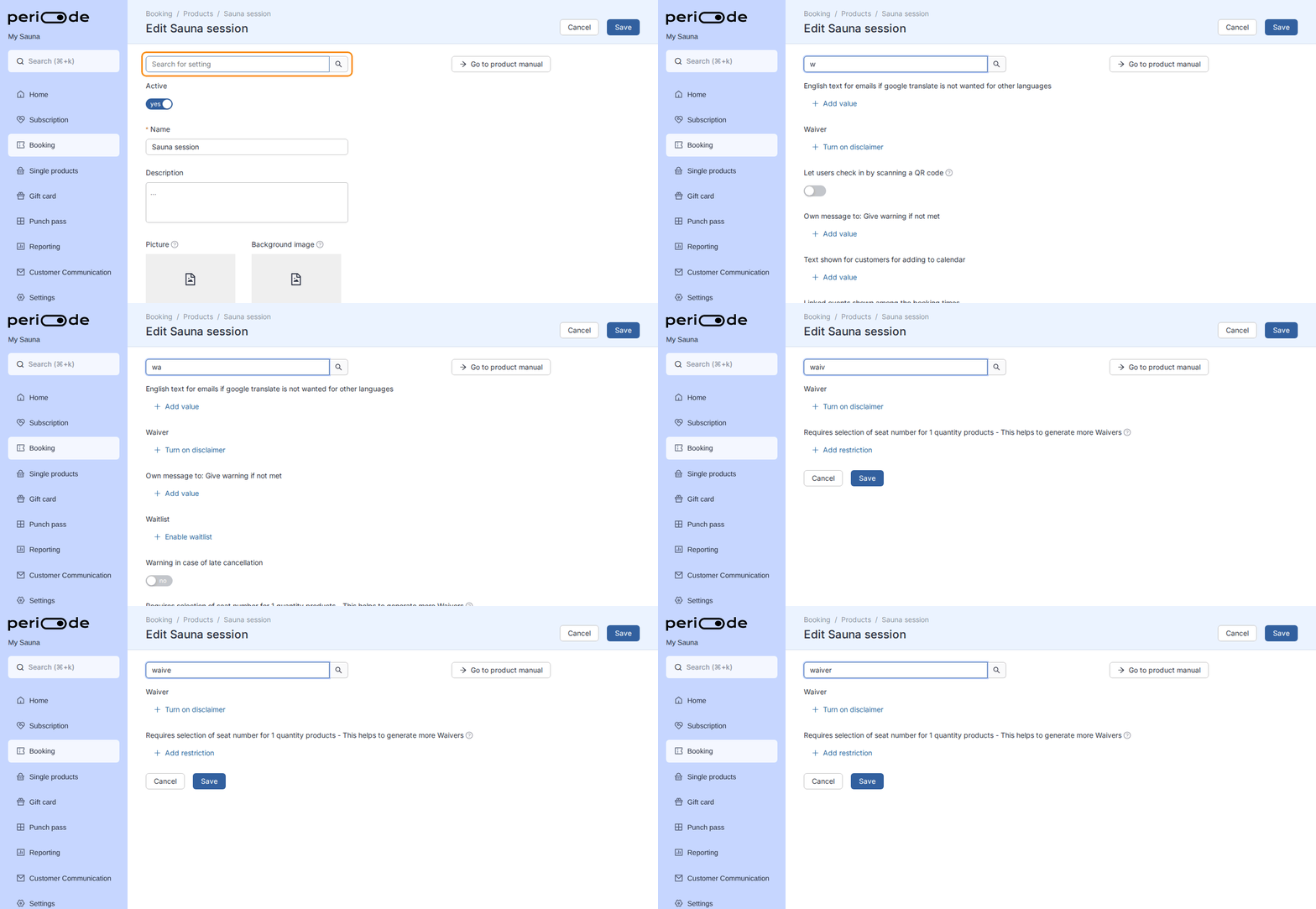
Search for "waiver" to jump straight to the setting. Click Turn on disclaimer. If you have no waiver yet, the Waiver admin dialog opens by itself. If you already have one, the product picks your first waiver and you open the dialog with Waiver administration.
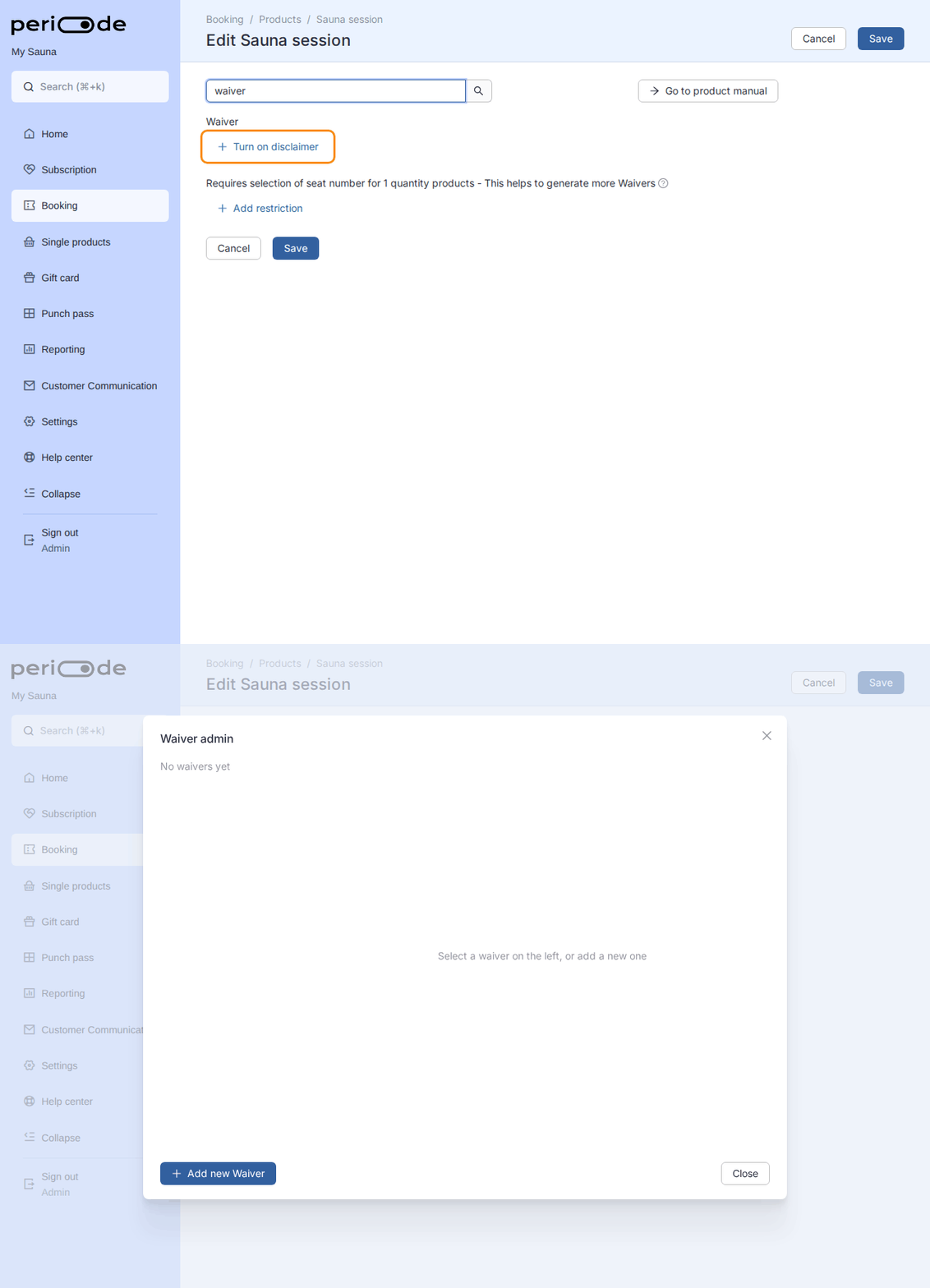
Turn on disclaimer opens the Waiver admin dialog when the merchant has no waiver yet. Click Add new Waiver. Give it a Name, which is what you see in the Backoffice, and a Title, which is the heading the customer sees. Click Save.
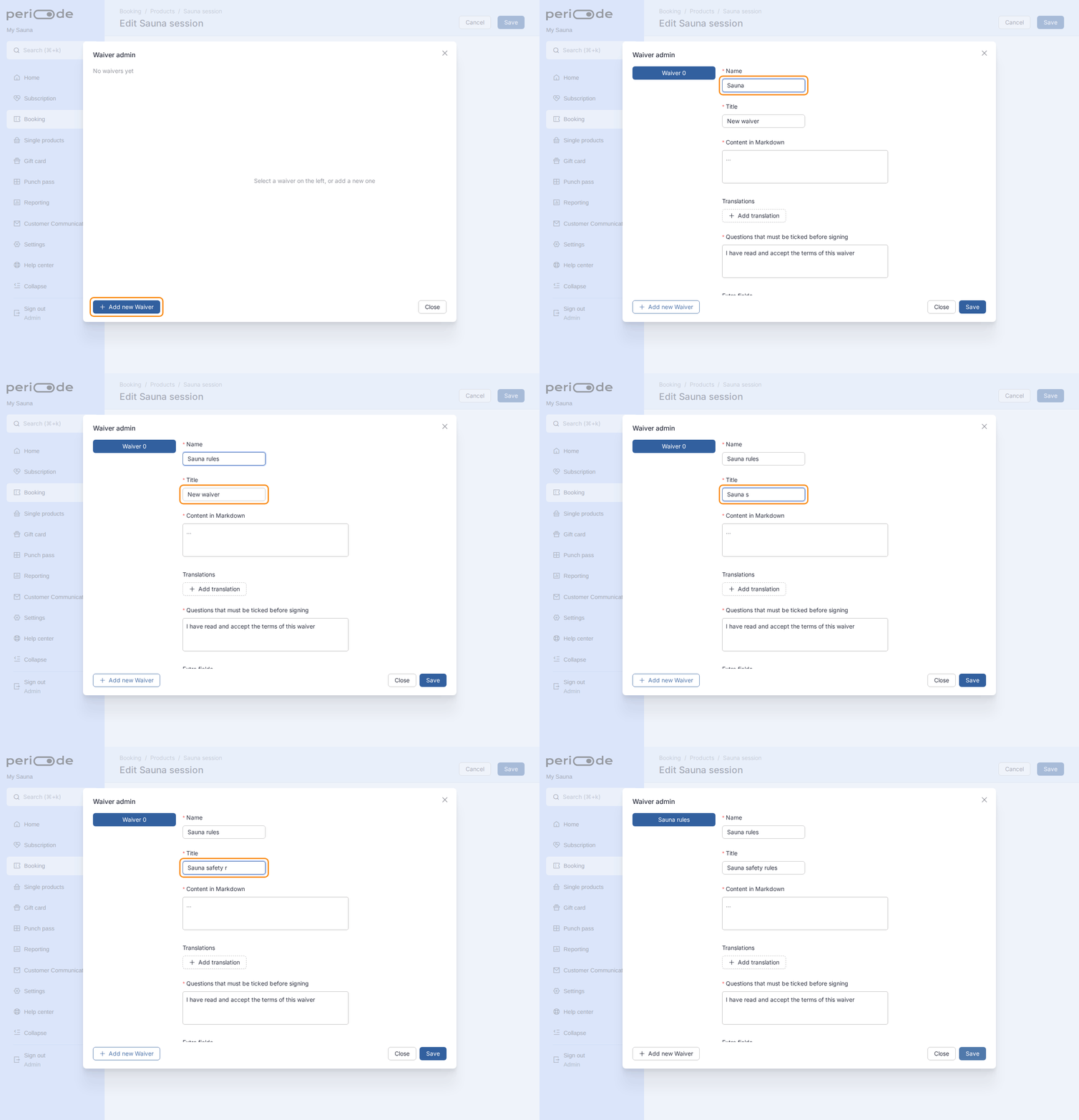
The Name is for you, the Title is for the customer. Click the Content in Markdown box to write the waiver text. Type or paste the rules the customer must accept, click OK, and click Save in the Waiver admin dialog. The text supports Markdown, so headings and lists work.
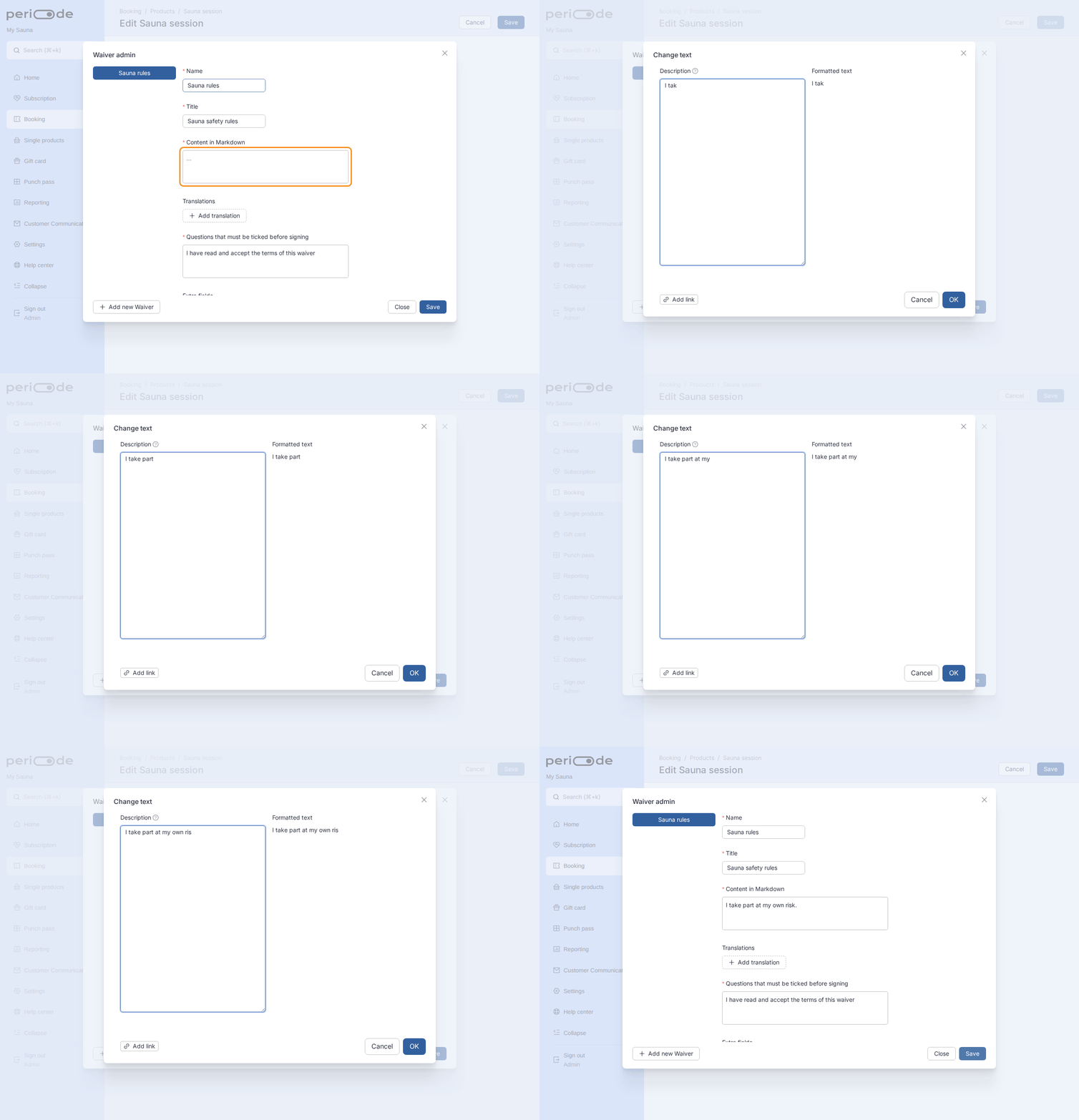
The content box opens a text dialog. Confirm with OK, then Save the waiver. Close the dialog. The product now shows the waiver in the picker under the Waiver setting. Click Save at the top of the editor to attach it to the product.
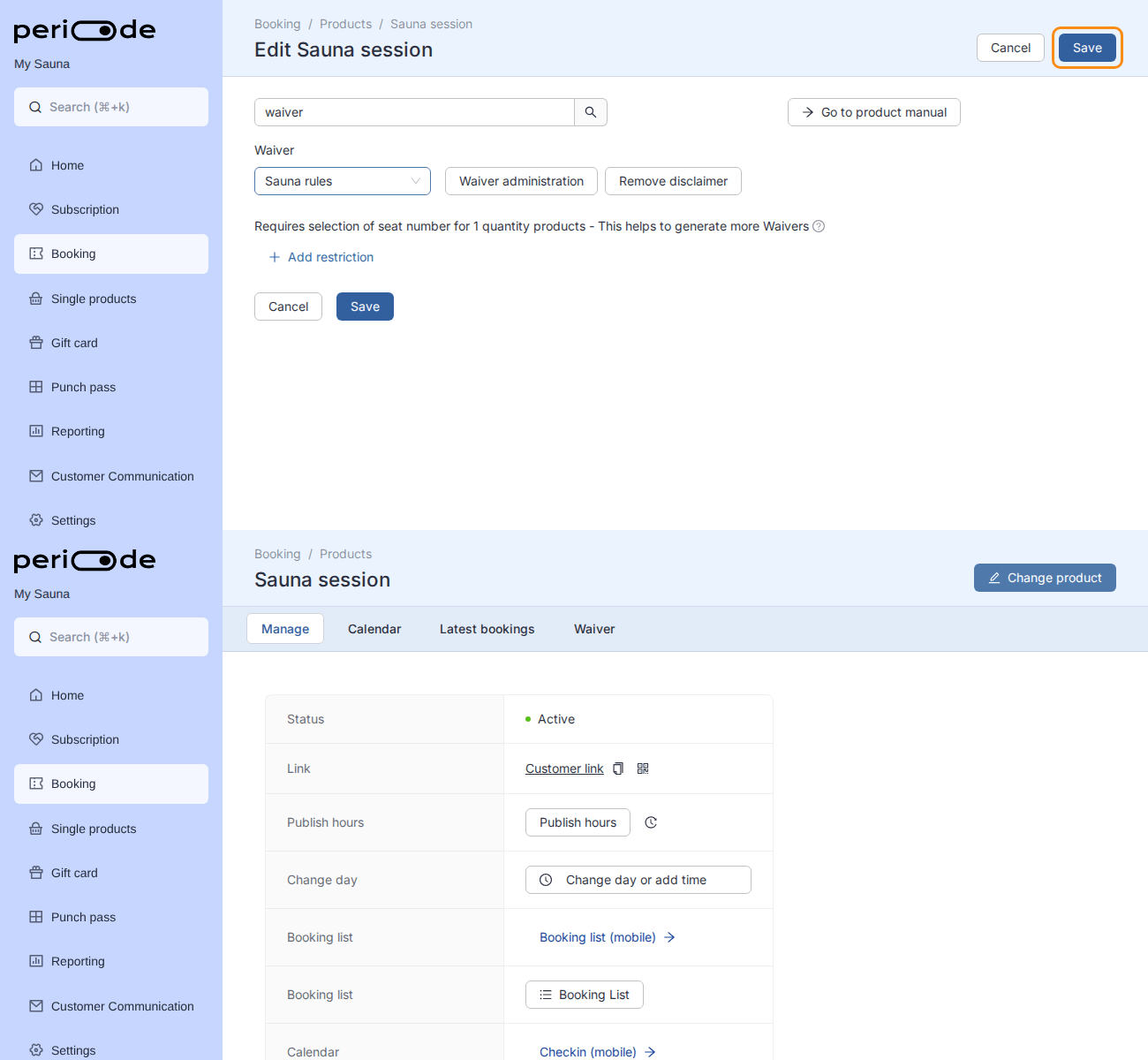
The waiver is only attached once you save the product. Save takes you to the product page, which now has a Waiver tab.
Questions that must be ticked before signing, translations and extra fields live in the same dialog. To use the same waiver on another product, turn on the disclaimer there and pick it from the list.
Extra customer fields
Extra fields collect information during booking. Use them for details staff need before the session, such as age range, experience level, postal code, accessibility needs, participant names, or other questions.
Keep required fields limited to information you actually need. Too many required fields can reduce completion rates.
Marketing consent
Turn on marketing consent when you want customers to opt in to your newsletter or other marketing while they book. It adds a consent checkbox with your own wording to the booking flow and records who agreed, so you can pull the list afterwards.
To turn it on, open the product under Booking > Products, click Change product, and type “marketing” in the Search for setting box. Turn on the Customers can accept marketing setting, click Add, and write the text the customer sees, for example “Yes, keep me updated by email”. You can add more than one statement when you need separate consents.
The “automatically checked” toggle pre-ticks the box for the customer. Pre-ticking an opt-in is not allowed in every country, so leave it off unless you have confirmed it is permitted where you operate.
To get the details afterwards, open Reporting > Booking statistics, set the period and products, and use Download > Download approval for marketing. The file lists each customer’s email and the consent they gave, ready to import into a newsletter tool. It covers customers who gave consent when booking, see the booking CSV exports for the full set. For a list of your members instead, see Exporting the subscriber list.
Optional extras
Extra choices
Optional extras let customers add something to the booking, such as towel rental, fire-lighting service, equipment, refreshments, or other add-ons.
Extras can be paid, free, or used as a negative-price adjustment depending on setup.
Time-specific extras
Extras are best when they can apply broadly to the product. If an extra should only be available for specific sessions, create a separate product for those sessions or handle the offer in another controlled way.
Linked products and shared capacity
Shared capacity
Products can be linked so booking one affects availability in another. This is useful when two products use the same resource, such as a communal sauna and private sauna that cannot be sold independently for the same time.
When a private product should reserve the whole shared space, set how many communal seats one private booking consumes to the communal capacity. If your communal sauna seats 7, one private booking must take all 7, otherwise a private booking only removes a single communal seat and the rest stay bookable. The link count and the communal capacity should match.
A linked product takes its schedule from the main product. To limit the hours a linked product can be booked without changing the main product, use Start times that cannot be booked on the linked product.
Add-on products
A product can be set so it cannot be booked by itself. Use this for add-on style products that must be booked together with another product.
Be careful after bookings exist
Do not change linking casually after a product already has bookings. Shared capacity affects availability logic, customer booking paths, and reporting.
Email and SMS
Every booking product has an Email and SMS section in the product editor. It controls the emails and text messages the customer receives about the booking, and the notifications you receive yourself. Open the product under Booking > Products and search for “email” or “sms” to find the settings.
Text for email confirmation
Periode sends the customer a confirmation email with the booking details as soon as the booking is completed. The text you write here is added to that email. Use it for the practical things the customer needs to know: what to bring, where to meet, how to get in.
The text can contain bullet lists and links. Click Variables you can use under the text box to see the placeholders that are filled in for each booking:
| Variable | Becomes |
|---|---|
{{firstname}} | The customer’s first name |
{{name}} | The customer’s full name |
{{date}} | The booking date |
{{starttime}} | The start time |
{{endtime}} | The end time |
{{fromtotime}} | The time range, from and to |
{{res}} | What was booked, such as the seats |
For example: “Hi {{firstname}}, welcome on {{date}} at {{starttime}}. Bring a towel and arrive ten minutes early.”
If your currency is NOK, there is also a setting for an English version of the text. Periode normally translates the text automatically when a customer books in another language. Write the English version yourself here when you want to control the wording instead.
Sending yourself a test email
You do not have to make a booking to see what the email looks like. As soon as the text box has content, a Send test button appears at the top right of it.
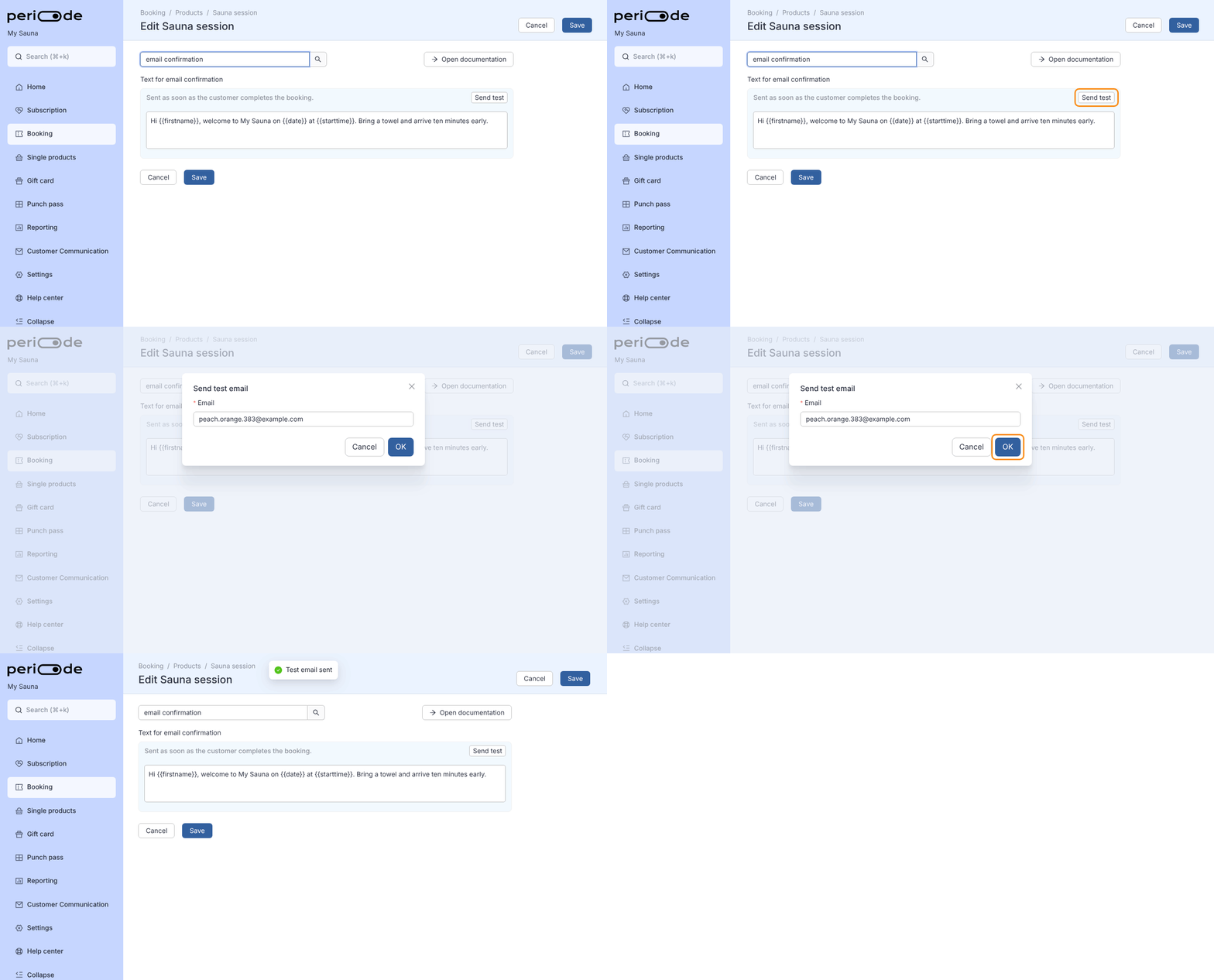
- Click Send test.
- The dialog has your own email address filled in. Change it if the email should go somewhere else.
- Click OK. The message “Test email sent” confirms that it went out.
The test uses the text as it is in the editor right now, so you can try a change before you save the product. The email is built from a sample booking of this product at 12:00 today, with “Name” as the customer, so the variables show example values. The reminder and feedback emails below have the same button.
Email the day before
A reminder to the customer before the booking. Switch it on with the toggle at the top right of the box, write the text, and choose when it goes out:
- The day before at a time of day, for example 20:00.
- Hours before the booking, for example 3 hours before the start.
With The day before at, a customer who books at short notice would get the reminder right after the confirmation. Two options decide what happens then. Send email if the time between doing the booking and the booking is long skips the reminder when it would go out less than 24 hours after the booking was made. Send email even if the booking starts in less than 24 hours always sends it. With Hours before the booking, the reminder is always sent.
The reminder has one extra variable, {{code}}, which becomes the customer’s booking code, such as a door code. It is only filled in when the reminder is sent Hours before the booking and that is 3 hours or less before the start, so the code is not shared too early. See Door pincodes.
Feedback email the day after
An email the day after the booking, for example asking the customer for a review. Switch it on, set the time of day it goes out and give it a Title, which is the subject line. Without a title the email is not sent.
It is only sent to customers who were checked in, so customers who did not show up are not asked. Choose Send email even if the customer is not checked in to send it to everyone who booked.
Email for admins
Email for admins every time there is a booking or a booking changed sends you an email when a booking is made or cancelled on this product. Enter the address it should go to. Separate several addresses with commas.
SMS
SMS has to be turned on under Settings > Company before these settings appear. Messages are sent between 09:00 and 20:00.
- SMS for bookings sends you an SMS when a booking comes in on this product. Enter the phone number, and turn on Only for bookings on the same day if you only want to hear about bookings for today.
- Automatic SMS sends the customer a message. Click Add automatic SMS and choose a type: a morning SMS at 06:30 to everyone with a booking that day, or an SMS a set number of hours before the booking. The “no bookings before” types only send when nobody else is booked in the hours before, on this product or on the products you pick. That suits a message such as “You are the first today, please turn the sauna on”. The message is at most 140 characters. It takes the same variables as the emails, plus
{{link}}for a link to the booking.
Sharing with customers
Booking links
Each booking product has a customer-facing link. Share it from your website, email, social media, ads, customer messages, and QR codes.
Use a direct product link for one specific product. Use a booking group link when customers should choose between several products.
To add the link to your website as a Book now button, see Connect Periode to your website.
QR codes
QR codes are useful at physical locations, posters, receptions, partner venues, and unmanned sites.
For customer check-in, use the check-in QR code flow described in Booking calendar.
Booking codes and door pincodes
Booking code before purchase
A product can require a booking code before a customer is allowed to book. Use this for private, invite-only, staff-only, partner-only, or restricted sessions.
This is different from a door pincode. A booking code controls who can book. A door pincode controls how the customer enters after booking.
Door pincodes
Door codes can be handled in several ways:
- A lock integration that creates a unique code per booking.
- A partner integration that manages access and heating.
- A static pincode shared by customers.
- A weekly rotating static code.
- A fixed code written in the reminder email.
- A code supplied by an external system through the Booking API.
For unmanned locations, combine access setup with waivers and check-in rules. If a customer cannot see the pincode, see Customer cannot see a door code.