
Browse the docs
Tags
Tags let you group your booking products by categories you choose, such as location. Each category becomes its own column in the sales export, so you can total sales per location in a pivot table instead of grouping by product names. Tags can also filter the sales export, and limit a staff member’s report access to their own location.
Only booking products can be tagged, together with their prices and extra options. Subscriptions, gift cards, punch passes and single products cannot.
How tags work
Tag types and values
A tag type is a category, such as Location. Its values are the options within it, such as Harbour and Beach. You can have several tag types side by side, for example Location and Category.
A product gets at most one value per tag type: a product can be at Harbour and in Sauna, but not at both Harbour and Beach. When you sell at two locations, use one product per location.
What happens when you tag a product
Nothing changes for your customers. Tags are not shown in the booking flow, on receipts or in emails. In the Backoffice:
- The sales export gets one column per tag type, filled in on every booking line. See Tags in the sales export.
- The sales export can be filtered to one or more values. See Filter the sales export by tag.
- A staff member can be given report access for only some values. See Report access per tag.
- The product list under
Booking > Productsgets a Tag filter, listing the values used on at least one product.
Only admins can create tag types and values and tag products.
Create tag types and values
Create a tag type
Open
Settings > Tags. When the Settings tab bar is full, Tags is under More.On the Tag types tab, click New tag type.
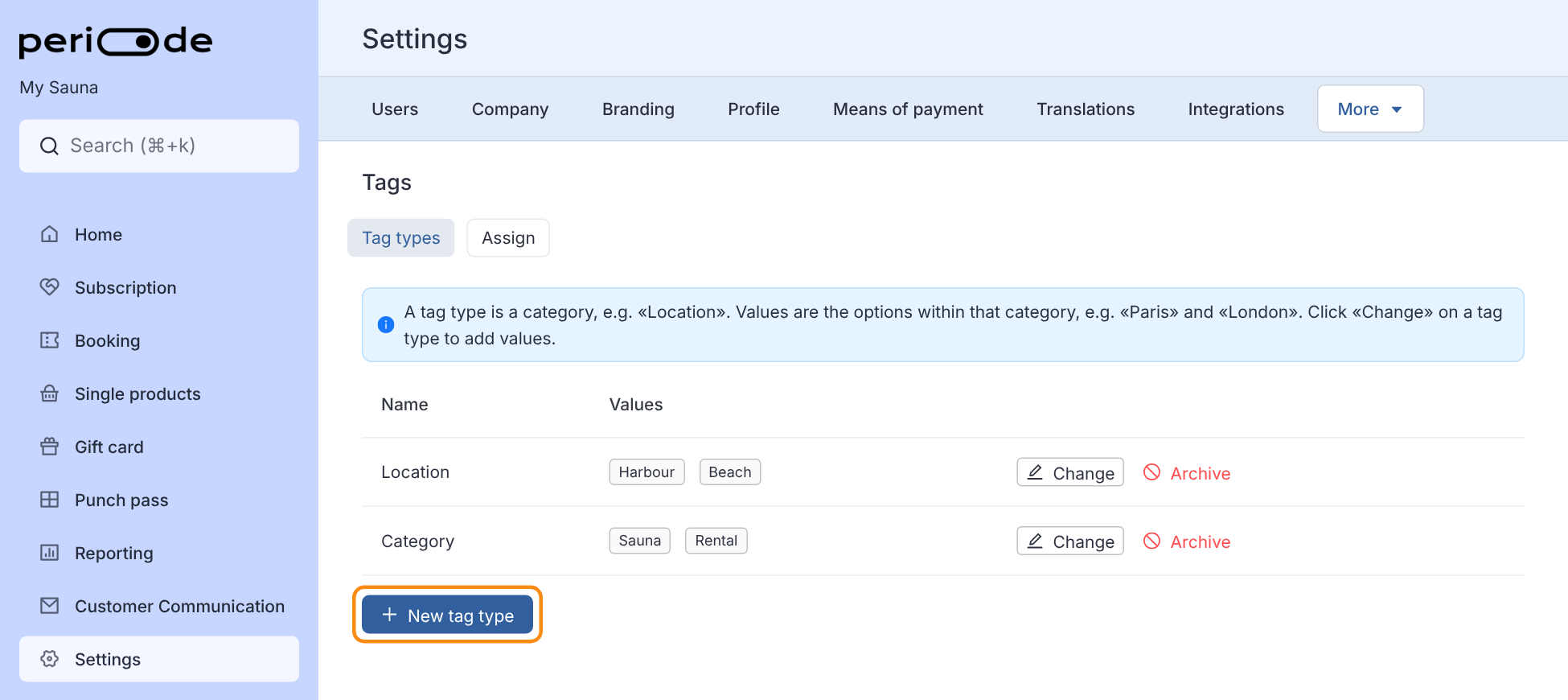
The Tag types tab lists each tag type with its values. New tag type is the button under the table. Type the name of the category, for example Location, and click Create and add values →.
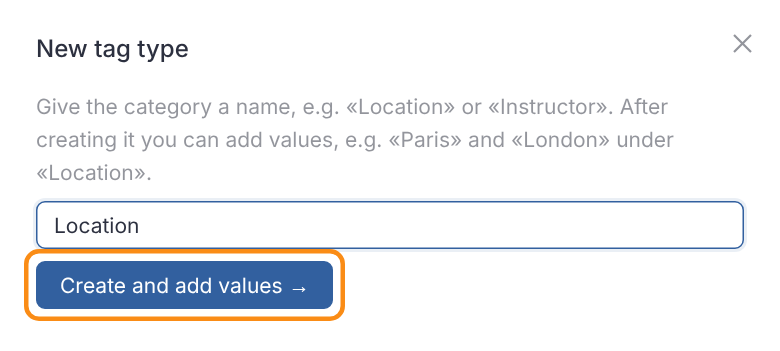
The New tag type dialog. It closes when the tag type is created.
The new tag type appears in the table with + Add values in the Values column. Add its values next.
Add values
Click + Add values, or Change on the tag type’s row.
Type a value in the New value… field and click Add. Repeat for each value.
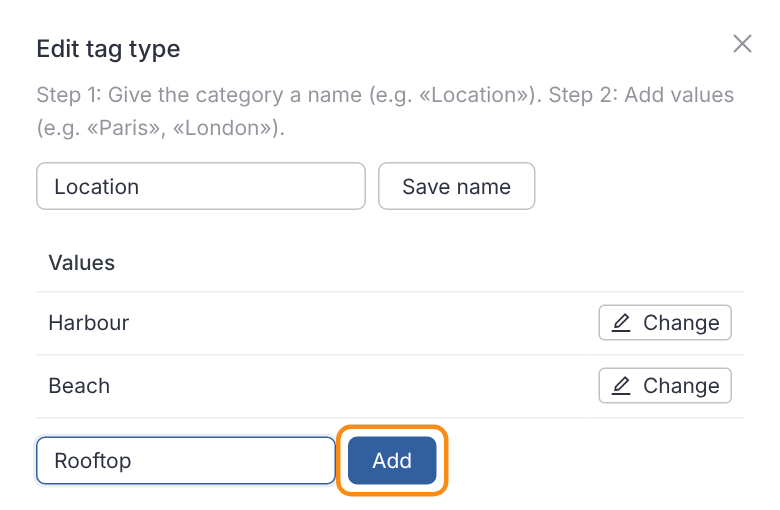
The Edit tag type dialog. Each value is saved as soon as you click Add; close the dialog when you are done.
Rename a tag type or value
In the same Edit tag type dialog, change the name at the top and click Save name, or click Change on a value, type the new name and press Enter.
A new name is used everywhere at once, including the sales exports you generate afterwards for earlier periods.
Archive a tag type
Values cannot be deleted one by one. Rename a value you no longer need, or archive the whole tag type with Archive on its row.
An archived tag type disappears from the Assign tab, from the product settings and from the sales export, also when you export an earlier period. Its values are kept, but only Periode support can bring the tag type back.
Tag your products
On the Assign tab
The Assign tab under Settings > Tags is the fastest way to tag everything at once. It has one row per active booking product, with that product’s prices and extra options listed under it, and one column per tag type.
Choose a value in the column to tag the row. The change is saved straight away; there is no Save button. Clear the field to remove the tag.
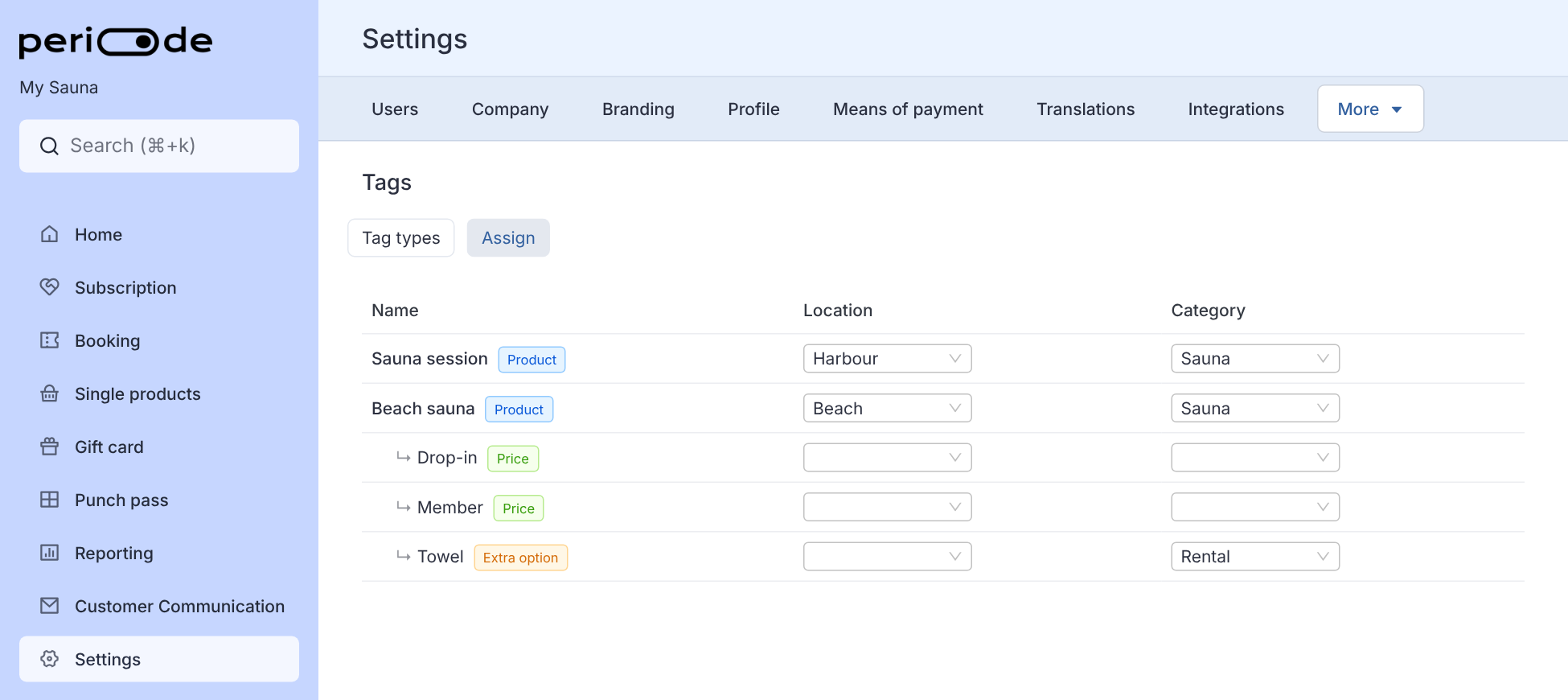
On the booking product
You can also set the tags on the product itself under Booking > Products:
- The product: each tag type has its own field, named after the tag type, in the Advanced details section. Type the tag type’s name in Search for setting to jump to it.
- A price: click Change on the price under Prices. The dialog has a Tags section with one field per tag type.
- An extra option: click Change on the extra option. Its dialog has the same Tags section.
Save the product afterwards, as with any other product setting.
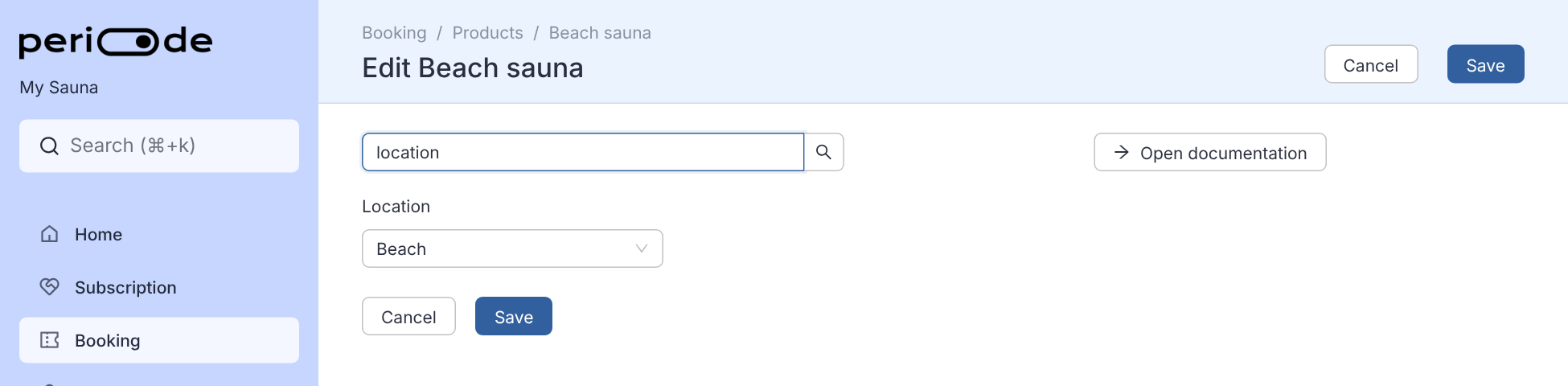
To tag many products in one go, use Edit many at once on Booking > Products and choose the tag type as the setting to change.
Tags on prices and extra options
Tag a price or an extra option when that part of a booking belongs somewhere else than the product. A towel rental sold as an extra option on a sauna product can be tagged Rental under Category, so it is not counted as sauna sales.
A price or extra option only overrides the tag types it has a value for. In the export, its line takes the price’s or extra option’s value where one is set, and the product’s value for every other tag type. In the picture above, the Towel line is exported with Location Beach, from the product, and Category Rental, from the extra option.
Tags in the sales export
Generate the sales export under Reporting > CSV with Generate Sales CSV. Each tag type adds a column at the end of the export, named after the tag type, with the value’s name in each row.
The tag columns are filled in on booking lines (type BOOKING ITEM) and on refunds of booking lines (BOOKING ITEM REFUND). They are empty on subscription charges, gift cards, punch passes, single products and other refunds, because those cannot be tagged.
| Type | Product name | Item name | Amount | Location | Category |
|---|---|---|---|---|---|
| BOOKING ITEM | Sauna session | Seat | 200 | Harbour | Sauna |
| BOOKING ITEM | Beach sauna | Drop-in | 200 | Beach | Sauna |
| BOOKING ITEM | Beach sauna | Towel | 50 | Beach | Rental |
| INVOICE | Sauna 12 months | 800 |
To total sales per location, open the export in Excel or Google Sheets, insert a pivot table, and put Location under Rows and Amount under Values, summed. In the example above that gives Beach 250 and Harbour 200, with the membership charge under an empty row of its own. Put Category under Columns as well to split each location by category.
The export always uses the tags and names your products have when you generate it, not the ones they had when the booking was made. If you move a product to another location, or rename a value, earlier periods change too the next time you export them.
Filter the sales export by tag
Under
Reporting > CSV, set the Date range and Date filter.Click Add filters. The button is only there once at least one tag type has values.
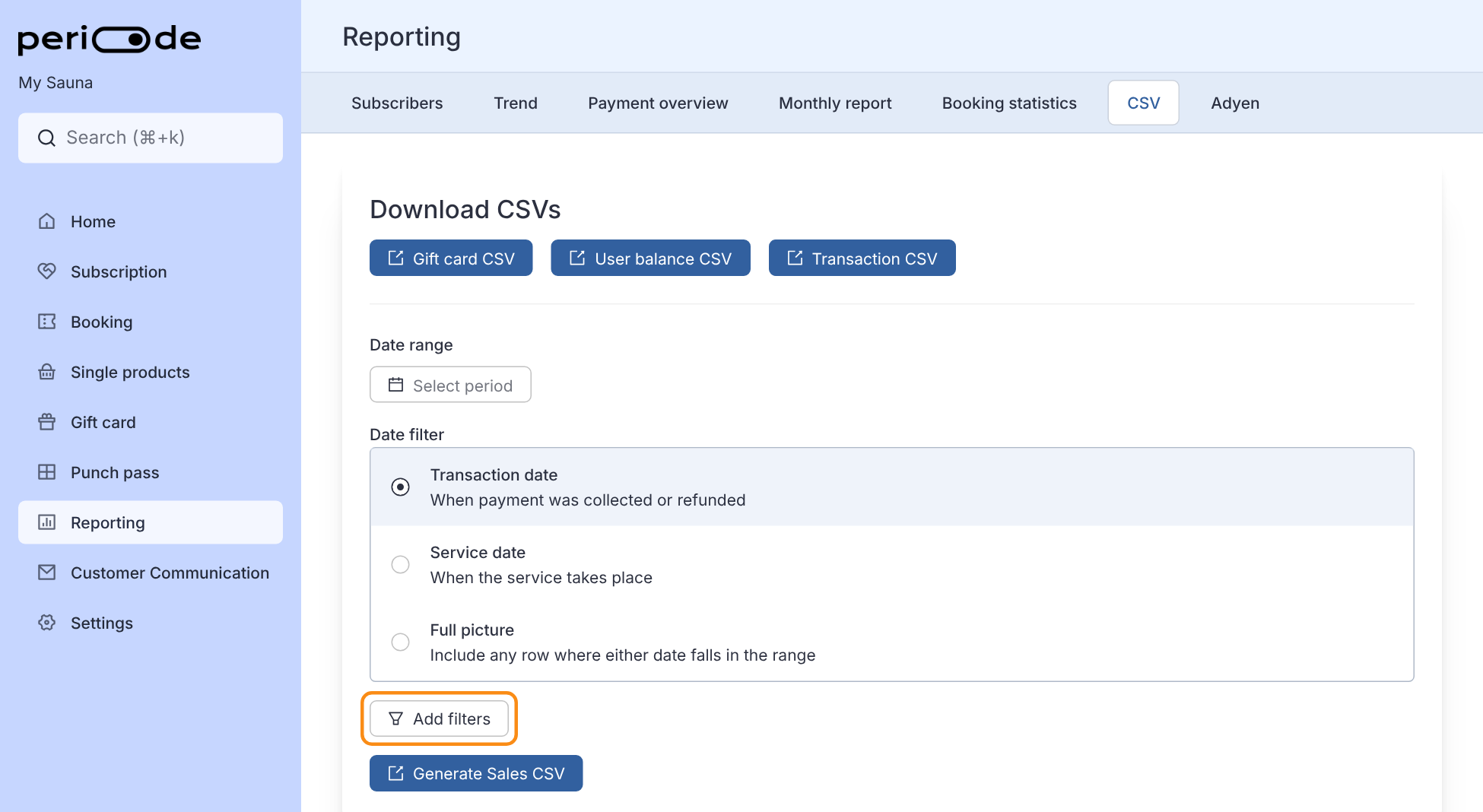
The CSV tab under Reporting. Add filters sits between the Date filter choices and Generate Sales CSV. In the Filters dialog, click Add filter, choose the tag type, then choose one or more values. Click OK.
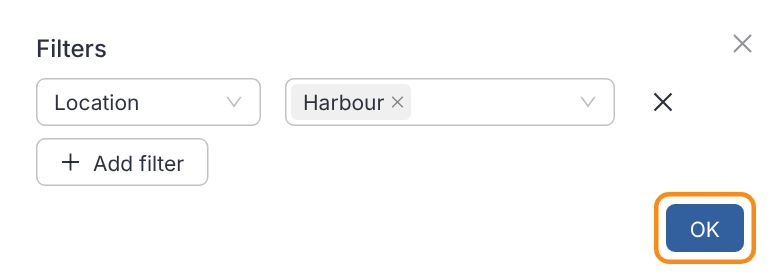
The Filters dialog. Each chosen value then shows next to Add filters, for example Location: Harbour. Click Generate Sales CSV.
How the filter works:
- A booking is included when its product has any of the chosen values. Choosing values from two tag types widens the export rather than narrowing it.
- Only the product’s own tags count. Tags on prices and extra options do not decide whether a booking is included, and products without tags are left out.
- While a filter is set, the export only contains bookings and their refunds. Subscription charges, gift cards, punch passes and single products are left out, because they have no tags.
Report access per tag
A location manager can download the sales export for their own location without seeing the rest of the business.
- Open
Settings > Usersand give the person the Custom role. Custom gives no access by itself. - Click the edit button in the Tag access column. The column is there once you have at least one tag type.
- In the Edit tag access dialog, choose the values the person should see, for example Harbour under Location, and click Done.
- Click Save under the table.
You can also set this when you invite someone: open Tag access (optional) in the invite form.
What the person gets:
- Only
Reporting > CSVin the Backoffice. - Every sales export they generate is filtered to their values. They cannot change the filter, and the export leaves out Periode’s fee columns.
- They only see the reports they generated themselves.
A Custom user needs at least one value under Tag access. Without one, they have no report access at all.